Your team and what each role can do
Updated 2026-09-01
How to invite people into your workspace, what each of the four roles can and cannot open, how teams route conversations, and the difference between switching someone off and removing them.
What do teams and roles do in Bottify?
Users & roles is where you let people into your shop's workspace and decide how much of it they see. Teams is where you group the people who work the inbox, so a bot can hand a conversation to a group instead of a person.
There are four roles: Admin, Supervisor, Agent and Viewer. You pick one when you invite someone, and you can change it later. The role is the whole of the decision — there is nothing else to configure, no per-screen permissions, no custom role.
Nouf runs Ward Al-Riyadh, a flower-and-gift shop in Riyadh selling bouquets and gift boxes on Salla, and taking bookings for a paid event-styling consultation. For a year she was the only person in the inbox. Now there are five of them. Maha is the shift lead: she watches the queue, approves consultation requests, and reopens a conversation an agent closed too fast. Sara and Khalid answer WhatsApp all day. Faisal is the outside accountant who reads the numbers once a month and must touch nothing — least of all the prices. Nouf opens this screen with one question: who do I let in, and how much of my shop do they see?
Her answer, and the roles it maps to: Maha becomes a Supervisor, Sara and Khalid become Agents, Faisal becomes a Viewer, and Nouf stays the only Admin.
What do you need before you can invite someone?
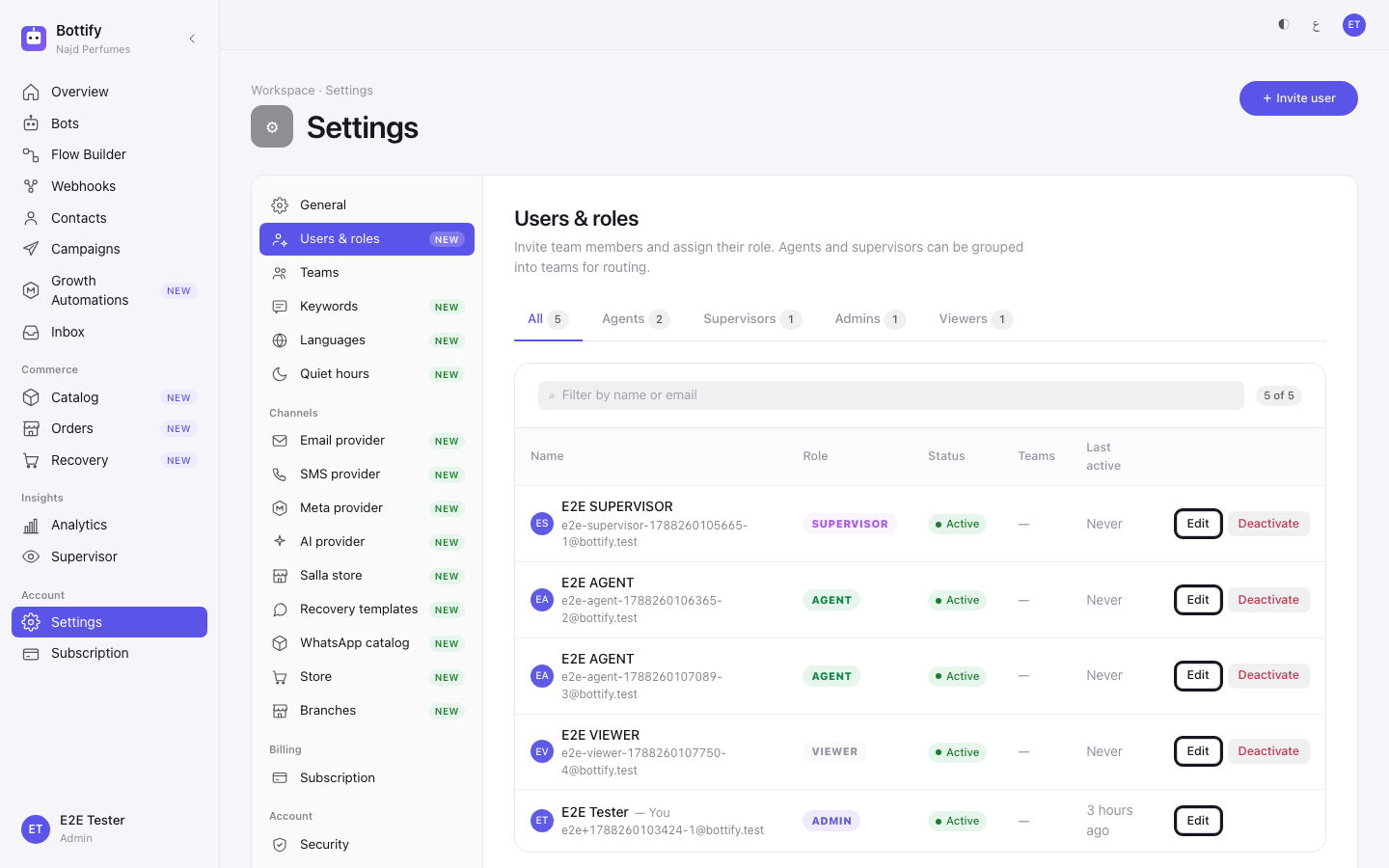
You must be an admin. Only the workspace admin can invite anyone, change a role, switch someone off, or touch teams. Not a supervisor. A supervisor who clicks toward Users & roles is sent back to their own home page before a form ever appears.
This is worth reading twice, because the product says otherwise in one place. The Team screen your agents and supervisors see carries a banner reading "Only supervisors and admins can manage team membership. Contact your admin to make changes." That is wrong. A supervisor cannot make the change. If Maha is asked to move Sara into a team, she has to come back to Nouf.
No plan is required, and there is no seat limit. Inviting someone is not gated by your plan, and Bottify does not currently limit how many teammates you invite. Nothing counts your agents and nothing refuses the next one.
Nothing needs to be connected. You do not need your Salla store connected, and you do not need a channel. You can build, name and staff your whole team on a workspace with nothing plugged in yet.
But be honest with the person you are inviting about what they will find. Meta has not yet approved Bottify, so WhatsApp, Instagram and Messenger cannot be connected from inside Bottify today. Your onboarding checklist says so in the product's own words: WhatsApp, Instagram and Messenger — awaiting platform approval. The invitation page your new hire lands on has not caught up — under a heading What you'll get it promises "Access to live customer chats on WhatsApp, Messenger, and Instagram". Today that is not true unless you have brought your own Meta app and connected a channel that way. Your team can be hired, trained and grouped now; the Meta channels arrive when approval does.
The invitation email is written in English, whatever language you or your teammate use. The page it links to is correctly Arabic for an Arabic-speaking reader — but the email itself is not. If you are inviting an Arabic-speaking colleague, tell them in your own words that an English email is coming.
What are the four Bottify roles?
The role, and what each one changes
This is the whole decision. Below is what a person can actually do, by role. ✓ means they can; — means they cannot.
A = Admin · S = Supervisor · G = Agent · V = Viewer
| What a person does | A | S | G | V |
|---|---|---|---|---|
| Answering customers | ||||
| Open the inbox and read a conversation | ✓ | ✓ | ✓ | — |
| Reply to a customer | ✓ | ✓ | ✓ | — |
| Take a conversation, or hand it to a teammate or a team | ✓ | ✓ | ✓ | — |
| Resolve, snooze, set priority, hand back to the bot, leave an internal note | ✓ | ✓ | ✓ | — |
| Label a conversation | ✓ | ✓ | ✓ | — |
| Reopen a conversation someone already closed | ✓ | ✓ | — | — |
| See the list of closed conversations | ✓ | ✓ | — | — |
| Create or delete the labels themselves | ✓ | — | — | — |
| Write and edit the saved replies | ✓ | ✓ | ✓ | — |
| Watching the team | ||||
| See who is online and who is busy | ✓ | ✓ | ✓ | — |
| Open the team overview and the shift reports | ✓ | ✓ | — | — |
| See the agent-performance report | ✓ | — | — | — |
| The shop | ||||
| Browse products and categories | ✓ | ✓ | ✓ | — |
| Add, edit or archive a product; change stock; import a product file | ✓ | — | — | — |
| See orders and move an order through its stages | ✓ | ✓ | ✓ | — |
| Send an order to a branch | ✓ | ✓ | — | — |
| Open sales insights (best sellers, buyers, revenue) | ✓ | ✓ | ✓ | — |
| Connect or disconnect the Salla store; run a full sync | ✓ | — | — | — |
| Bookings | ||||
| See services, the calendar and appointments | ✓ | ✓ | ✓ | — |
| Approve or decline a booking request | ✓ | ✓ | — | — |
| Create or change a service, its hours and its questions | ✓ | — | — | — |
| Cart recovery | ||||
| Open the recovery report | ✓ | ✓ | ✓ | — |
| Read the reminder templates | ✓ | — | — | — |
| Edit a reminder template or apply a preset | ✓ | — | — | — |
| Bots and flows | ||||
| Look at your bots and their connected channels (a supervisor is refused, and since the roles ruling the screen says so — "This page is for workspace admins." — instead of bouncing her to her own dashboard without a word) | ✓ | — | ✓ | ✓ |
| Open the Flow Builder and look at a flow (it is in nobody else's sidebar) | ✓ | — | — | — |
| Build, publish, unpublish or roll back a bot or a flow | ✓ | — | — | — |
| Connect or remove a channel | ✓ | — | — | — |
| Read the bot's knowledge documents | ✓ | — | ✓ | — |
| Upload or delete a knowledge document; test the bot in the simulator | ✓ | — | — | — |
| Campaigns and sequences | ||||
| See campaigns at all — even the list and its numbers (every campaigns request is admin-only on the server, so the page refuses everyone else outright and says so: "This page is for workspace admins.") | ✓ | — | — | — |
| See sequences and their numbers | ✓ | ✓ | ✓ | — |
| Create, pause or archive a sequence | ✓ | — | — | — |
| Contacts | ||||
| Browse contacts and their history (a viewer who opens Contacts reads "This page isn't part of your account's access") | ✓ | ✓ | ✓ | — |
| Add or remove a contact's tags (from the inbox, or from the contact drawer on the Contacts page) | ✓ | ✓ | ✓ | — |
| Unsubscribe or resubscribe someone in bulk; delete a contact; import a contact file | ✓ | — | — | — |
| Numbers | ||||
| Open the Analytics dashboards (Analytics is in the supervisor's sidebar, under her reports; an agent has no link and reaches the page only by URL. The Agent performance card is admin-only and reads Admin-only. for everyone else) | ✓ | ✓ | ✓ | ✓ |
| The workspace | ||||
| Open the workspace settings and read General (the fields are there but read-only below admin; the other seventeen settings screens refuse anyone but an admin, and now each says "This page is for workspace admins." rather than bouncing) | ✓ | — | ✓ | ✓ |
| Open Branches and read the branch list (a supervisor is turned away before the screen loads — she now reads "This page is for workspace admins." where she used to land silently on her dashboard; for an agent or a viewer the screen itself opens, but the list is refused and never loads) | ✓ | — | — | — |
| Change any setting (languages, quiet hours, keywords, providers, store) | ✓ | — | — | — |
| See the subscription, invoices and payment method; change the plan | ✓ | — | — | — |
| See how much of the plan is used (the usage meters are on the Subscription screen, and it is admin-only) | ✓ | — | — | — |
| People | ||||
| See who else is in the workspace | ✓ | ✓ | ✓ | — |
| Invite someone, change a role, switch someone off, remove them | ✓ | — | — | — |
| Create, rename or delete a team; put someone in a team | ✓ | — | — | — |
This matrix describes the web dashboard. The phone app keeps its own role table, and it is not the same one — a supervisor can open screens on her phone that the web turns her away from, the product catalogue and the abandoned-cart report among them. So if Maha tells you she can see something on her phone that she cannot see on her laptop, she is not mistaken: The Bottify app on your phone.
Three rows in there will surprise you. They are correct.
A supervisor cannot open Analytics, and a viewer can. Maha's numbers are not missing — they live on her own team overview and shift reports, which is where a supervisor's numbers belong. Faisal, who touches nothing, reads the dashboards.
Campaigns are invisible below Admin. Not "cannot send" — Maha cannot see that campaigns exist. Sequences are the opposite: she, Sara and Khalid all see those and their numbers. So do not read this as "marketing is admin-only".
A supervisor cannot read the bot's knowledge documents, but an agent can. Supervisor is not a bigger agent. It is a different job with a different set of doors.
One thing everyone sees the same way. Abandoned carts and recovery is in dry-run. Whoever opens the recovery report — admin, supervisor or agent — sees the banner Dry-run mode — no live messages are being sent, and every reminder is marked Planned — not sent. Recovered revenue reads 0 by design. No role sends those messages, because nothing sends them yet.
And one thing nobody can do. Bottify's own staff can reach a workspace to help you. That is not a role you can hand out; the invite screen refuses it.
Teams, and what they change
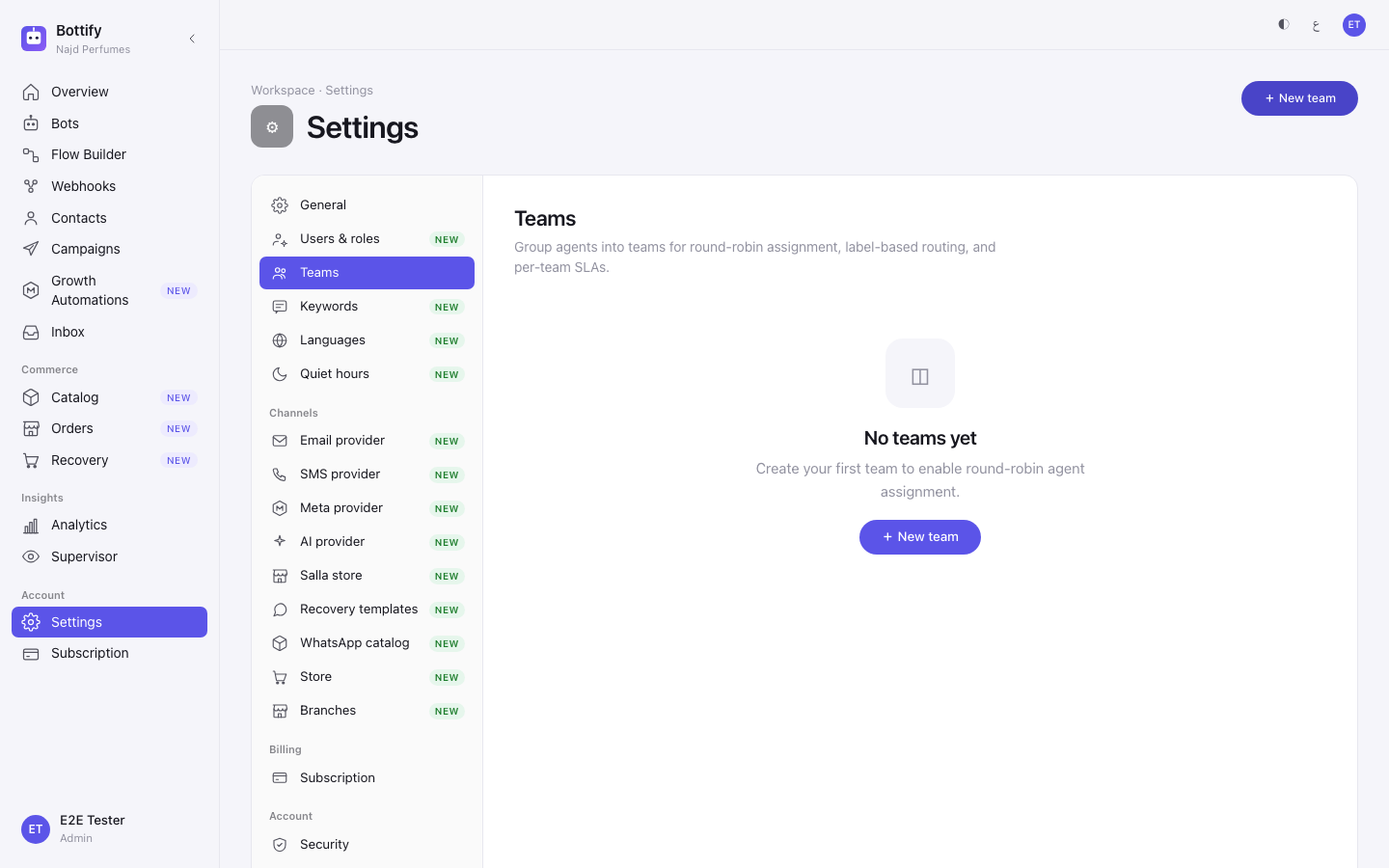
Teams are optional. Create none and everything still works — a conversation is handed to a named person, or it waits.
Create one, and you get exactly one new behaviour: a bot hand-off or an inbox transfer can name the team instead of a person, and Bottify passes the conversation round the team's members in turn, skipping anyone who is not online. If nobody in that team is online, the conversation waits rather than landing on an absent person.
That is all a team does today. The Teams screen's own description mentions routing by label and per-team service-level agreements. Neither of those is in the product. Read a team as one thing: a pool of online people a hand-off can name.
Teams are for the people who work the inbox — agents and supervisors. When you invite an admin or a viewer, no Teams field is offered at all. (You can add an admin to a team later from the edit panel, if she also works the queue. A viewer in a team can never be routed anything, because a viewer cannot reply.)
Create teams on the Teams screen; staff them from Users & roles. The Teams screen can add a member, but only by pasting a person's internal id, and it lists existing members as an 8-character code with no name next to it. It is not a screen you can staff a team from. Everything below sends you to Users & roles → Edit → Teams instead, where the teams are shown as named buttons you click.
Switching someone off, and removing them
| Option | What changes | Can you undo it |
|---|---|---|
| Deactivate | They are signed out on the spot, disappear from "who's online", and cannot sign back in. Their conversations stay assigned to them and do not move | Yes — Activate on their row puts them back |
| Remove from workspace | Everything deactivation does, plus: every team membership is cleared and their link to your workspace is cut | No. And their email address stays taken forever — you cannot invite that address again |
| Change role | Takes effect on their next click. They are not signed out and do not need to sign in again | Yes — change it back |
| Save teams | Replaces their team list with exactly what is ticked. It does not add to what was there | Yes — tick again and save |
Read the removal row once more. Removing someone is permanent for that email address. Their replies stay in your customers' conversations, attributed to them, which is why the record is kept and why the address stays used. If there is any chance the person comes back — a seasonal hire, a colleague on leave — use Deactivate. That is the reversible door. Remove from workspace is not, and the confirmation box tells you so: "They will lose access immediately. This cannot be undone."
Before you switch anyone off, hand over their conversations. Nothing moves them for you. Khalid's eight open chats stay assigned to Khalid, and the teammate who tries to take one is told his account has been deactivated and cannot be assigned conversations. Reassign first, switch off second.
You cannot lock yourself out. On your own row there is no switch-off button, and your own edit panel carries a banner reading "This is your own account — role, status, and removal are disabled." Note the flip side: any admin can remove any other admin. An admin is a full owner of your shop's workspace. Give the role only to people who could run the shop without you.
How do you invite someone to your workspace?
Invite someone
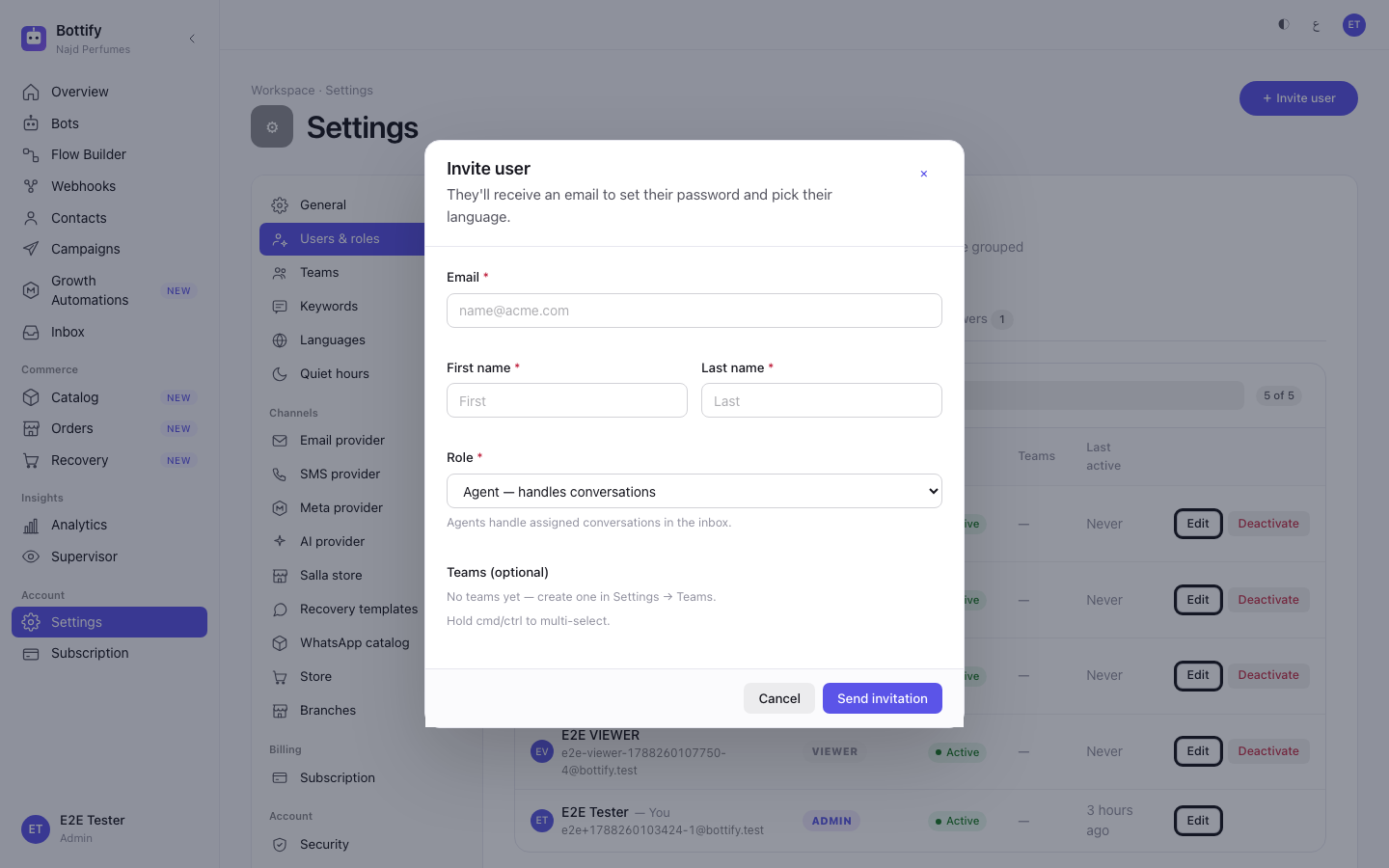
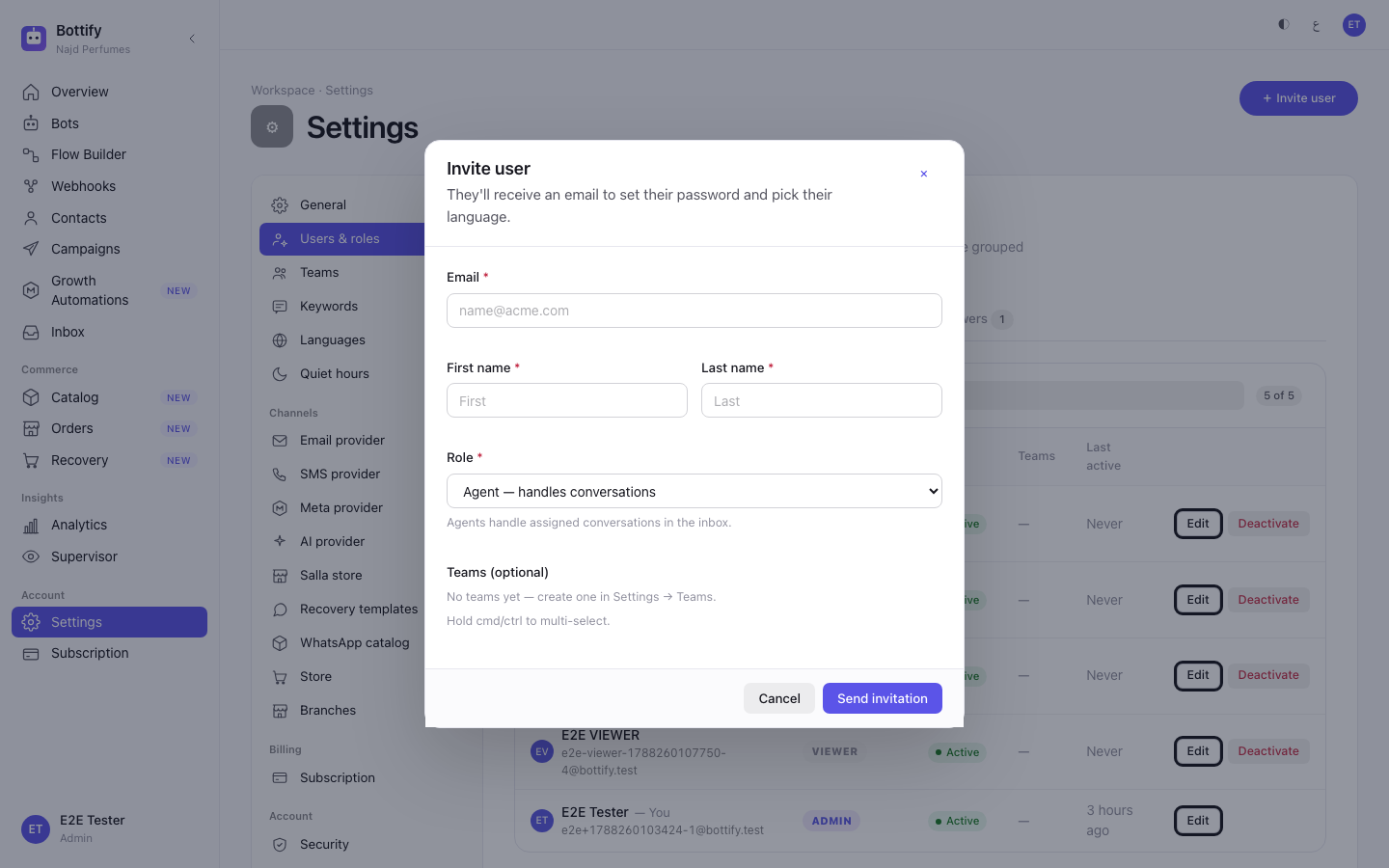
- Open Settings from the sidebar, under Account.
- Click Users & roles in the settings list.
- Click + Invite user.
- Type the person's work email into Email.
- Type their First name.
- Type their Last name.
- Choose their Role. It starts on Agent — handles conversations.
- Click each team you want them in, under Teams (optional). (This section only appears for an agent or a supervisor.)
- Click Send invitation.
Then tell your teammate three things, because no screen will: the email is in English, the link stops working after 48 hours, and their password must be at least 12 characters and no more than 72, must not be a common password, and must not contain the part of their email before the @. No capital letter, digit or symbol is required.
What your teammate does
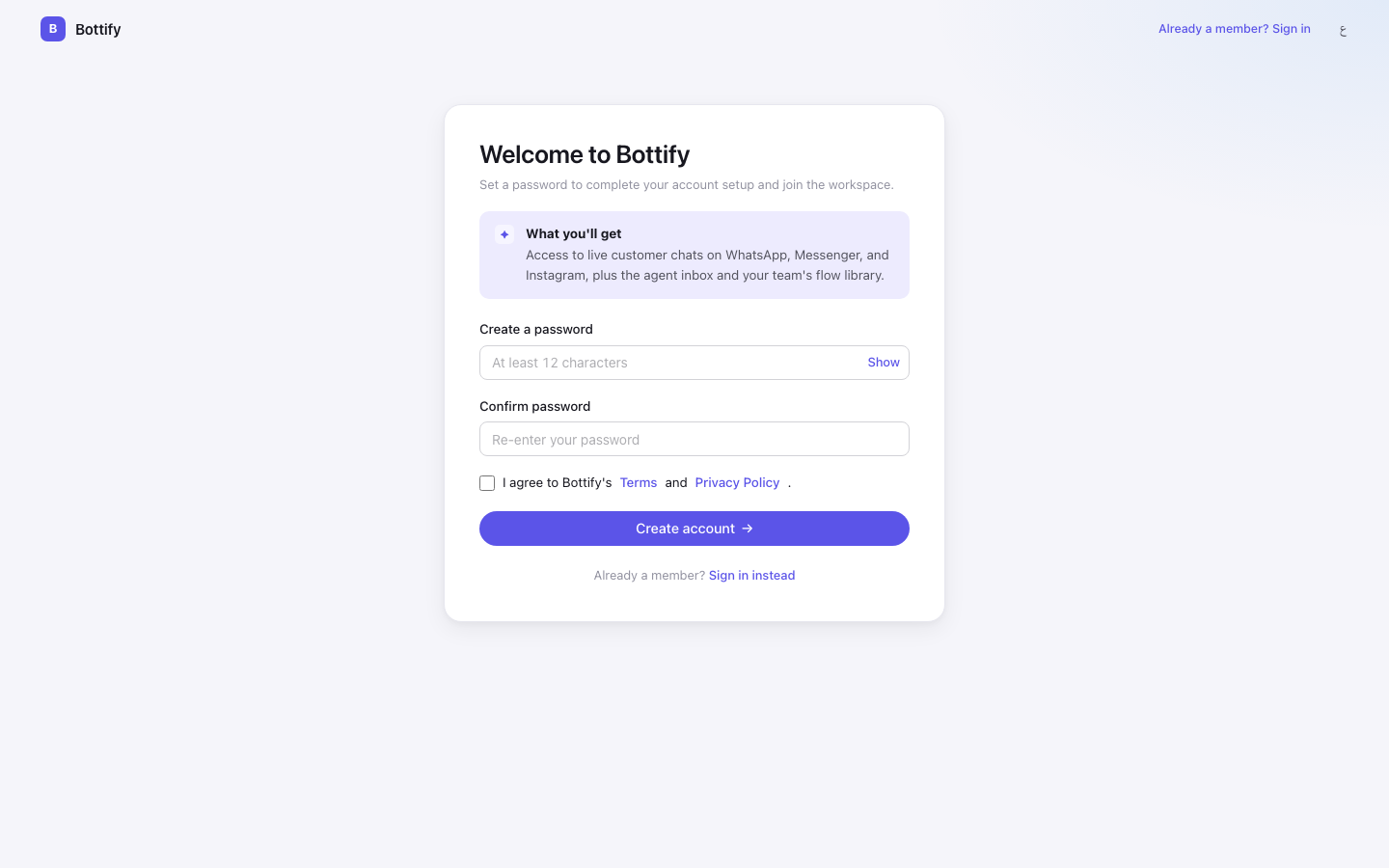
- Open the invitation link from the email. The page is headed Welcome to Bottify.
- Type a password into Create a password.
- Type the same password into Confirm password.
- Tick I agree to Bottify's Terms and Privacy Policy.
- Click Create account.
They are signed in immediately — there is no second sign-in. The page picks its own language from their browser, and they can switch it with the language toggle at the top at any time. There is nothing in the form that asks them to choose a language, whatever the invite panel says.
Create a team and put people in it
- Click Teams in the settings list.
- Click + New team.
- Type a Name — for example, Sales.
- Type a Description, or leave it empty.
- Click Create.
- Go back to Users & roles.
- Click Edit on the person's row.
- Click the team's button under Teams.
- Click Save teams.
- Repeat steps 7 to 9 for each person.
Deleting a team has no confirmation step and no undo. Click Delete on a team card and it is gone at once, along with its membership. Any hand-off that named that team stops routing. Check the card's name before you click.
Change someone's role
- Click Edit on their row.
- Choose the new role under Role.
- Click Save role.
Switch someone off
- Reassign their open conversations to someone else first.
- Click Deactivate on their row.
Remove someone for good
- Reassign their open conversations first.
- Click Edit on their row.
- Scroll to Danger zone.
- Click Remove from workspace.
- Read the confirmation — it names the person: "Remove Khalid from this workspace?"
- Click Remove.
How do you know an invitation was accepted?
After you send an invitation, a message reads Invitation sent to followed by their email address. The panel closes, and their row appears in the list right away — status Active, and Last active reading Never, because they have not signed in yet. That column is really "last signed in"; Never means the invitation has not been accepted.
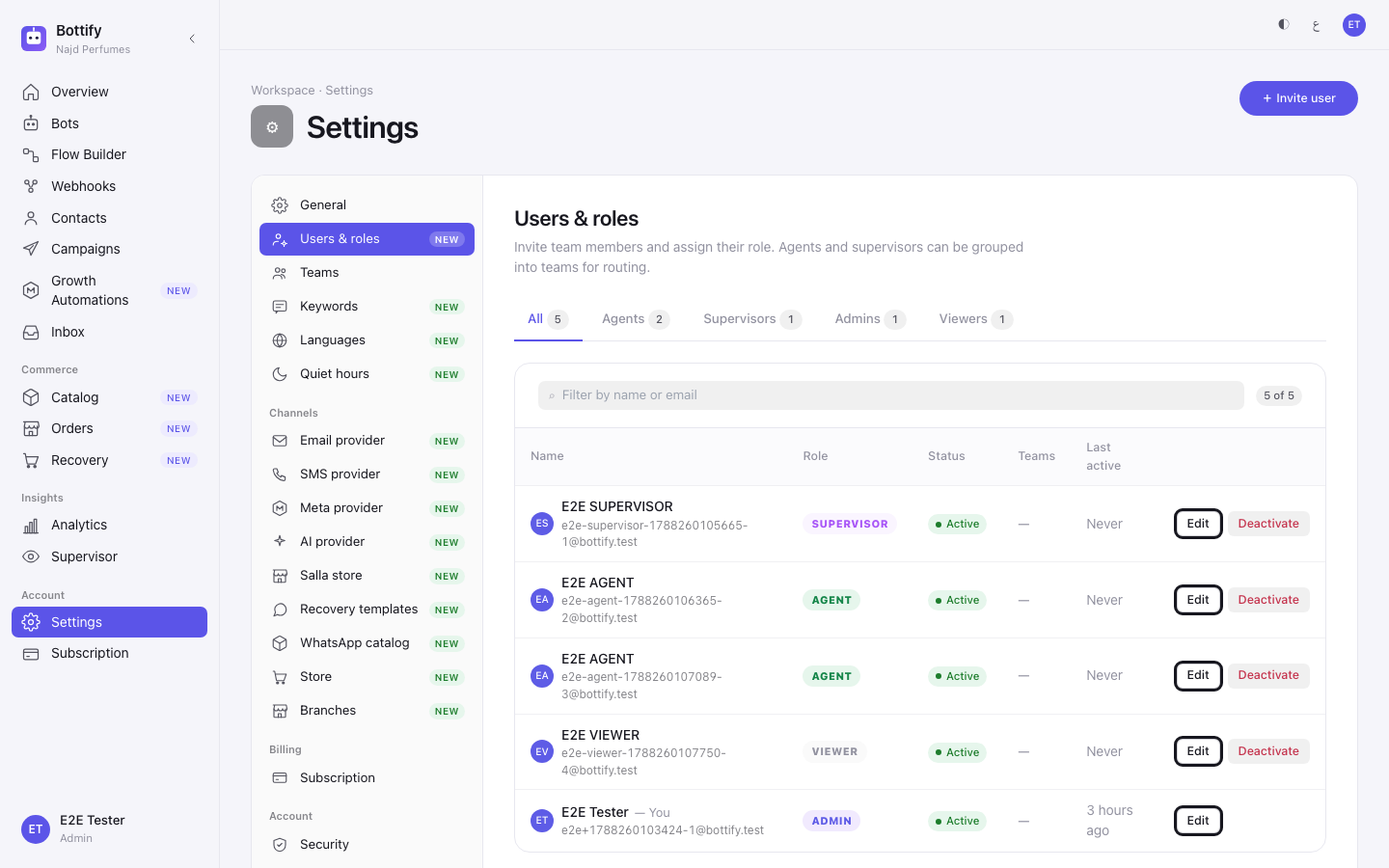
After your teammate sets their password, they see their own name in the greeting — Welcome, Sara! — and land straight in Bottify — an admin or a viewer on the Overview page, a supervisor on the team overview, an agent in the inbox. On your side, their Last active stops saying Never.
After a role change, a message reads Role updated, and the badge in the Role column changes on their row. They do not have to sign out and back in; the change applies at their next click.
After you save teams, a message reads Teams updated, and the Teams column on their row shows the team names you ticked.
After you create a team, a message reads Team created and the team appears as a card. It also appears immediately as a clickable button in every person's edit panel.
After you switch someone off, a message reads User deactivated, their status pill changes from Active to Inactive, and the row's button changes from Deactivate to Activate. They vanish from the online list at once.
After you remove someone, a message names them — Khalid removed from workspace — and the row leaves the list.
Why can't my teammate see a screen?
The invitation link has expired
What they see: a full page headed Invitation expired or invalid, with a red callout reading Couldn't accept invitation and the sentence "This invitation link is invalid or has expired. Please contact your workspace admin for a new one." The only button is ← Back to sign in.
Why: an invitation link is good for 48 hours and then it stops working. Nothing warns anyone as the time runs out.
What to do: the message tells your teammate to ask you for a new link, and there is no button anywhere in Bottify that sends one. Do not try to invite the same person again — that address is already registered to the account you created, and the invitation will be refused. Here is the way through: their account already exists and is active, so send them to the sign-in page and have them use Forgot password with the same email address. The reset email lets them set their password, and they are in.
That email address is already in use
What you see: red text under the Email field in the invite panel reading Email already registered. It does not appear as a message at the top of the screen — look under the field.
Why: three different situations produce it. The person is already in your workspace — check the All tab and the filter box before you invite. Or you removed them once, and their address is still held by the record that was kept. Or the address is signed up to a different Bottify workspace, in which case the wording is "This email is already used by another workspace."
What to do: if they are already in your list, you have nothing to send — if they cannot get in, use Forgot password rather than a second invitation. If you removed them and want them back, that address cannot be reused; invite them on a different address. If the address belongs to another workspace, ask them which email they want to use for yours.
The password is refused when your teammate sets it
What they see: a message headed Couldn't accept invitation with the reason underneath — "That password is too common. Choose something less predictable.", or "Password must not contain your email address.", or "Password must be 72 characters or fewer."
Why: two of the password rules are checked as they type, and two are not. Too short and the two boxes not matching are caught right away, in their own language. Whether a password is a common one, and whether it contains their email address, is only checked when they press Create account.
What to do: have them pick a different password. If your teammate reads Arabic, tell them the rules before they start, because the reason is not shown to them in Arabic — they see only a general "something went wrong" message under the same heading, with no clue which rule they broke. The rules are: at least 12 characters, at most 72, not a common password, and it must not contain the part of their email before the @.