Connecting WhatsApp, Instagram and Messenger
Updated 2026-09-01
How to put your bot on the WhatsApp number, Facebook Page or Instagram account your customers already message — using your own Meta credentials, because the one-click path is still waiting on Meta's approval.
What does connecting a Meta channel do?
This page is where a bot stops being something you test in Bottify and starts answering real customers on the app they already have open.
Take Dar Al-Oud, an oud and perfume shop in Riyadh. Faisal owns it, sells on Salla, and has already synced his catalogue into Bottify. All day, customers message his WhatsApp Business number asking the same three things: is the Cambodi oud in stock, how much is the oud oil, and do you deliver to Dammam. Faisal built a bot that can answer all three. Right now that bot answers nobody, because it is not attached to his number. Connecting the channel is the wire between the two.
There are two ways to run that wire, and they are not equal today.
- Bring your own Meta credentials. You create a Meta app, generate an access token, and paste it into Bottify. This works today. This page walks it end to end.
- Connect through Meta in one click. Bottify shows a + Connect WhatsApp via Meta button on each channel. Meta has not approved Bottify yet, so this button does not work for merchants. Your onboarding checklist says so in the product's own words: "WhatsApp, Instagram and Messenger — awaiting platform approval", with the body "Meta must approve Bottify before your customers can message you on these channels. There is nothing for you to do here yet — this step becomes a Connect button on the day approval lands."
We do not have a date for that approval. Nobody at Bottify has one to give you. If someone quotes you a date, it did not come from the product.
Whose Meta app a pasted token runs through. The product never says this anywhere, and you need it to read the errors later. A channel you connect by pasting a token is recorded as running on Bottify's own shared Meta app — always, in both cases. Turning on your own Meta app for the whole workspace (Your options, below) does not change it: that setting only reaches channels connected through the one-click Meta path, which is closed today, and the option's own row already warns that channels connected by pasting a token do not move over. So there is one case in practice, not two: your token, Bottify's app.
That split is harmless for the thing you care about most. Sending a message carries your access token and nothing else — no app secret, no signature — so the WhatsApp number you connected answers customers normally. Where the split bites is Bottify's periodic health check. On WhatsApp and Instagram — not Messenger — that check signs its call to Meta with the app secret of the app Bottify treats as the channel's owner, which for a pasted-token channel is always Bottify's, while the token you pasted was minted by your app. Meta rejects a signature that does not match the app behind the token, with an error in the 190 family, and Bottify reads that rejection as a revoked token. You will not see the words appsecret proof when this happens. What you will see is the channel's health chip turn to Reconnect required — and from that moment Bottify refuses to send on that channel, and the row's Edit token action disappears, because the only repair the product offers for that state is Reconnect via Meta, which belongs to the closed one-click path. The way back is to delete the channel row and connect it again: the row returns to Healthy and sending resumes, until the next health check comes round. One honest limit: we read this from the code, not from your account. We cannot see your row, and the check does not reach every channel — a WhatsApp row Bottify never resolved a WhatsApp Business Account ID for is skipped, and Messenger is not signed this way at all. So this is what will happen, not a claim about what has already happened to you. The "Server configuration issue" — "Something went wrong on our end (appsecret proof)" — message is a different thing entirely; When it doesn't work → 1 below says what it is.
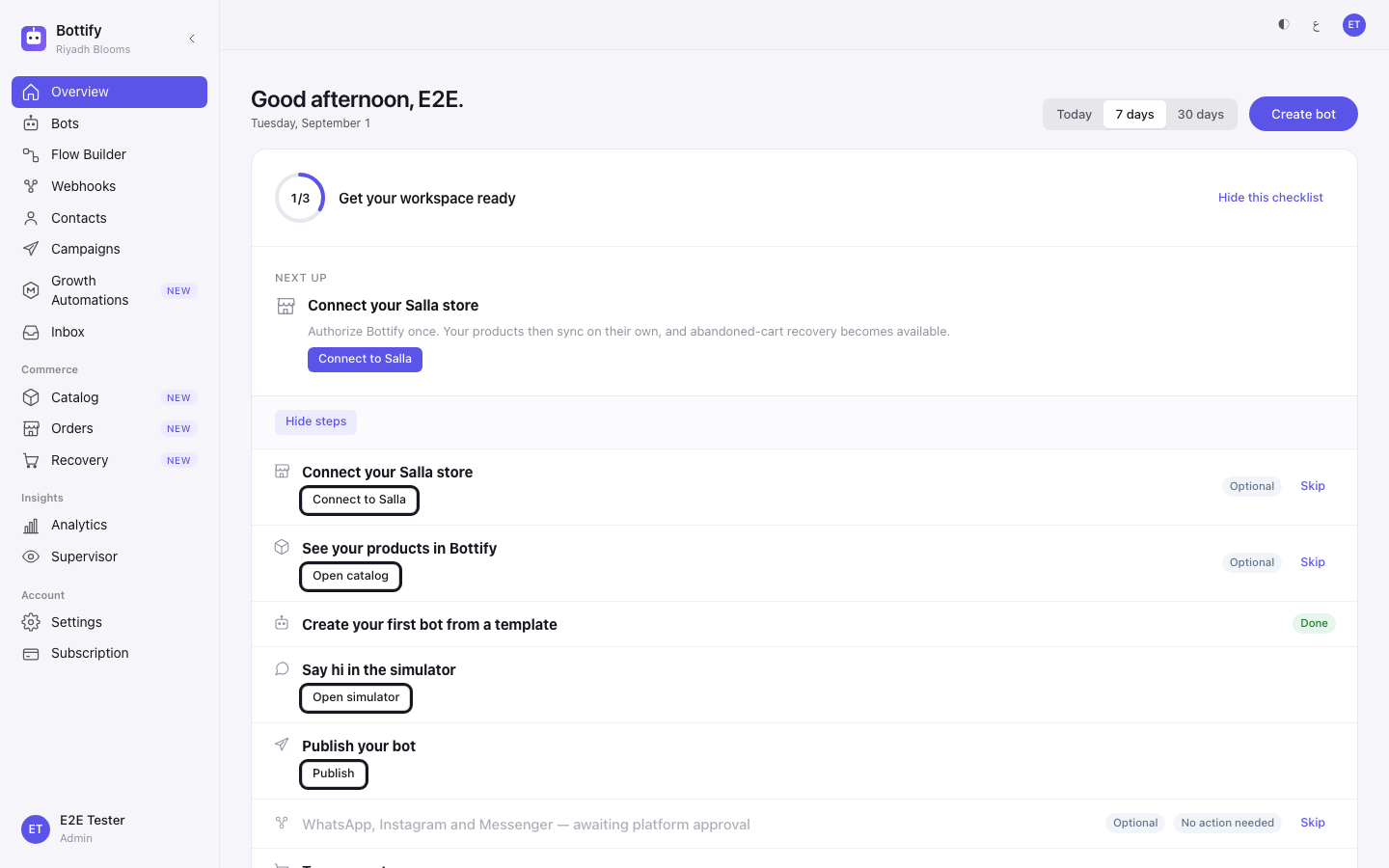
One thing connecting a channel does not do: it does not start Abandoned carts and recovery messages. Cart recovery stays in Dry-run mode — no live messages are being sent — the reminders are counted, not delivered.
What do you need before you can connect WhatsApp?
- You must be an admin. Supervisors, agents and viewers do not see the connect buttons at all, and cannot open the Meta settings page. If a button in these steps is missing for you, that is the reason.
- You must already have a bot. Channels attach to a bot, not to your workspace. Create the bot from Bots first, then come back.
- Your plan does not limit this. There is no channel limit on any Bottify plan. If you ever see a message saying your plan does not allow more channels, it is wrong — tell support.
- You need a Meta Business account, and depending on the channel: - WhatsApp — a WhatsApp Business number, and a verified Business if you want to message anyone outside Meta's test numbers. - Messenger — a Facebook Page you administer. - Instagram — an Instagram Business or Creator account linked to a Facebook Page you administer. A personal Instagram account will not work.
- You need one value only Bottify can give you: the verify token. Ask Bottify support for it before you start. It is not shown anywhere in the product, and you cannot finish the setup at Meta without it. More on this in the steps.
What are your options for connecting WhatsApp?
| Option | Where | What changes if you turn it on / off |
|---|---|---|
| Channel (WhatsApp / Messenger / Instagram) | Connect channel window | Decides which inbox your bot answers in, and which ID you must paste. WhatsApp wants the phone number ID. Messenger wants the Page's numeric ID. Instagram wants the Instagram account's numeric ID. |
| WhatsApp Business Account ID | Connect channel window, WhatsApp only | Leave it blank with a permanent token and Bottify finds it for you. Leave it blank with a temporary 24-hour token from Meta's API Setup page and the connection will not work. Fill it in and the temporary token works — for the 24 hours it lasts. |
| Your own Meta app, for the whole workspace | Settings → Meta provider | Off (the default): your channels run through Bottify's shared Meta app. On: channels connected through the one-click Meta path run through your own app, with your own limits and your own name on the messages. This must be switched on for you by Bottify — there is no button to request it, and there is no self-serve path. Note also that a channel connected by pasting a token never moves over — not the ones you connected before the switch, and not the ones you connect after it. The switch does not reach them at all; they keep running on Bottify's shared app. |
App mode (DEVELOPMENT / LIVE) | Settings → Meta provider, step 2. Credentials | This describes your Meta app; it does not control it. Setting it to LIVE only hides a warning notice inside Bottify. It changes nothing at Meta. If your Meta app is genuinely in development, Meta still blocks sign-in. |
| WhatsApp Embedded Signup Configuration ID | Settings → Meta provider, step 3. Per-channel configuration IDs | Only matters for the one-click Meta path. Blank means the WhatsApp Connect via Meta button refuses before it opens. Since that path is closed today, you can leave it blank. |
The Settings → Meta provider setup is a separate job from connecting a channel, and it is not required for anything on this page. Do not start there.
How do you connect WhatsApp to your bot?
At Meta — do this part first. These screens belong to Meta, so there are no Bottify screenshots for them.
- Go to
developers.facebook.com, open My Apps, and choose Create App. Pick the Business app type — it is the only one that offers WhatsApp, Messenger and Instagram. - In your new app, add the product for the channel you want: WhatsApp, Messenger or Instagram. Add only the ones you will actually use.
- Link the app to your Meta Business account, under Settings → Basic → Business Account. For WhatsApp, your Business must be verified before you can message customers outside Meta's test numbers.
- Copy the account ID for your channel and keep it somewhere you can paste from: - WhatsApp — the phone number ID, on WhatsApp → API Setup. - Messenger — the Page's numeric ID, in the Page settings header. - Instagram — the account's numeric ID, in Business Manager under Instagram Accounts.
- Generate the access token and copy it: - WhatsApp — WhatsApp → API Setup gives you a temporary token that dies after 24 hours. For a token that lasts, create a System User in Business Settings, give it your WhatsApp app and your WhatsApp Business Account, and generate a permanent token. - Messenger and Instagram — generate a Page Access Token for your Page, carrying
pages_messaging,pages_show_listandpages_manage_metadata. Instagram borrows its permissions from the Page it is linked to. - Email Bottify support and ask for the verify token for your webhook. Do not skip this and do not guess it. You will need it at step 18, and there is no way to find it yourself.
In Bottify.
- Open Bots from the sidebar.
- Open the bot you want to put on this channel.
- Open the Channels tab.
- Under Connected channels, click Paste access token — the plain button at the top right, next to the big + Connect … via Meta buttons. Ignore the big buttons; they are the path Meta has not opened yet.
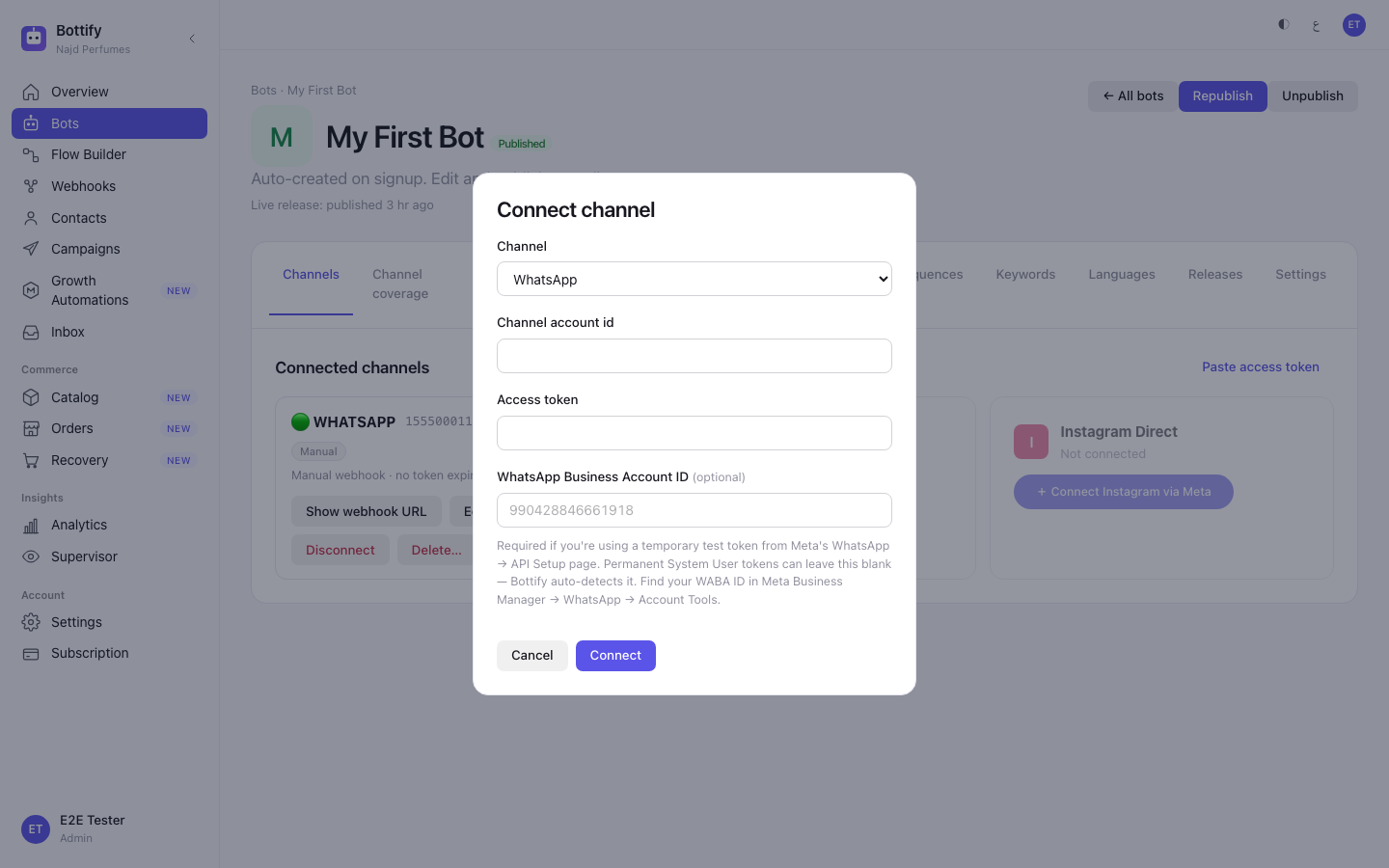
- In the Connect channel window, pick your Channel from the list.
- Paste your account ID from step 4 into Channel account id.
- Paste your token from step 5 into Access token.
- WhatsApp with a temporary token only: paste your WhatsApp Business Account ID into WhatsApp Business Account ID. Skip this if your token is a permanent System User token.
- Click Connect. The button reads Connecting… while it saves.
- On the panel that appears, click Copy next to the webhook URL. Do not click Show if anyone can see your screen — that URL is a password in disguise.
Back at Meta — the half that makes messages actually arrive.
- In your Meta app, open the channel's Webhooks or Configuration section and paste the URL into the Callback URL field.
- Paste the verify token you got from support at step 6 into the verify token field on that same Meta page.
The panel on your screen tells you this field "accepts anything". That sentence is wrong. If you type anything other than the token support gave you, Meta will refuse to save the webhook and show you an error on Meta's side, not in Bottify. We are fixing the sentence; use the token.
- Subscribe the fields Meta asks you to choose:
messages,messaging_postbacksandmessage_deliveriesfor WhatsApp and Messenger;messagesandmessaging_postbacksfor Instagram. - Return to Bottify and click Done.
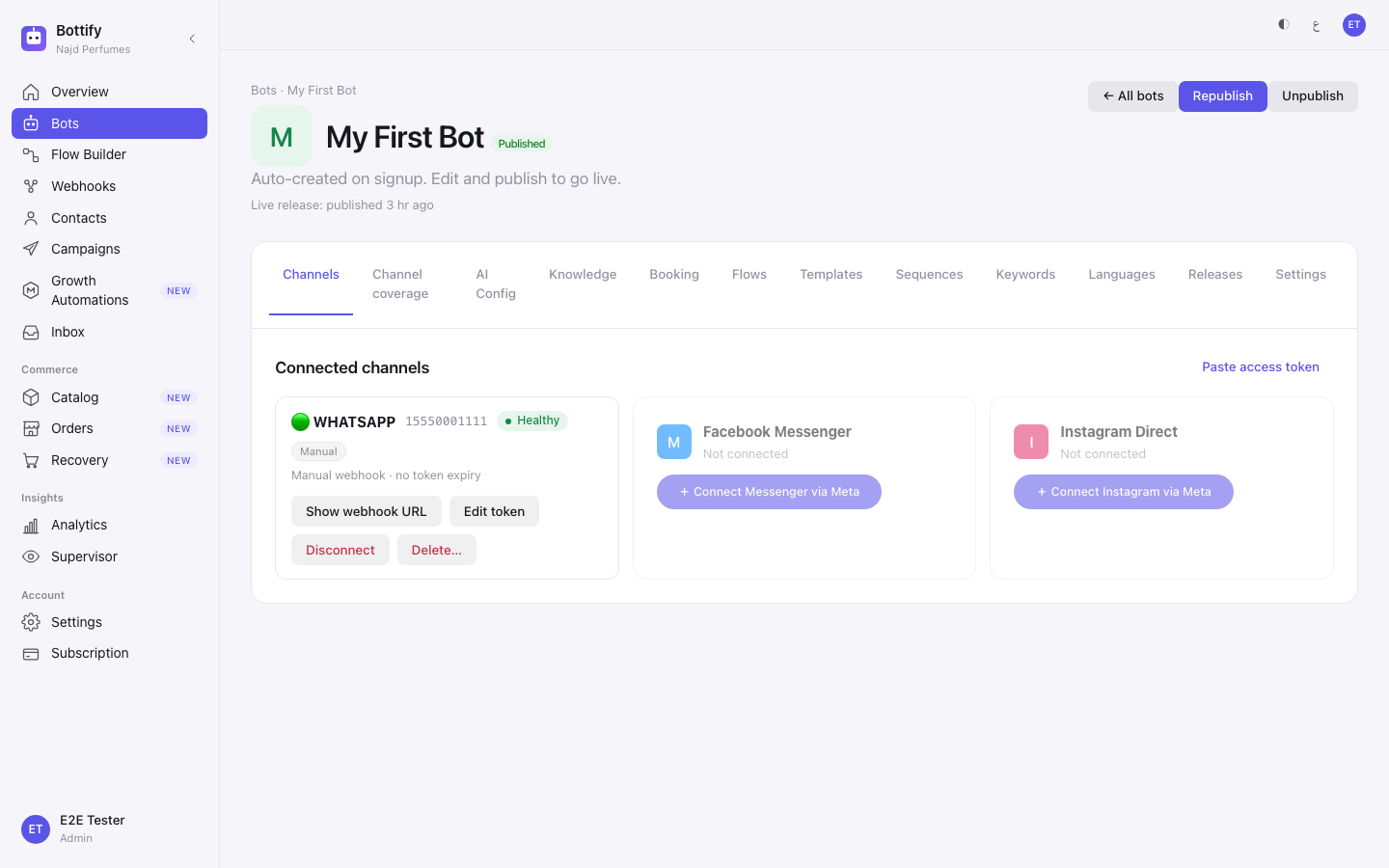
One hazard the product will not stop you from hitting. Nothing prevents you from connecting the same WhatsApp number to two different bots, and if you do, which bot answers is undefined. Disconnect the old channel before you point the same number at a new bot.
How do you know the channel connected?
The Connect channel window replaces itself with a panel headed ✅ Channel connected. That panel carries your webhook URL, hidden behind Show / Hide / Copy, and tells you: "The URL is stored encrypted-at-rest. You can re-display it any time from this channel's row using the "Show webhook URL" button — admins only." There is no toast and no email. This panel is the whole signal, and you only get it once in this form.
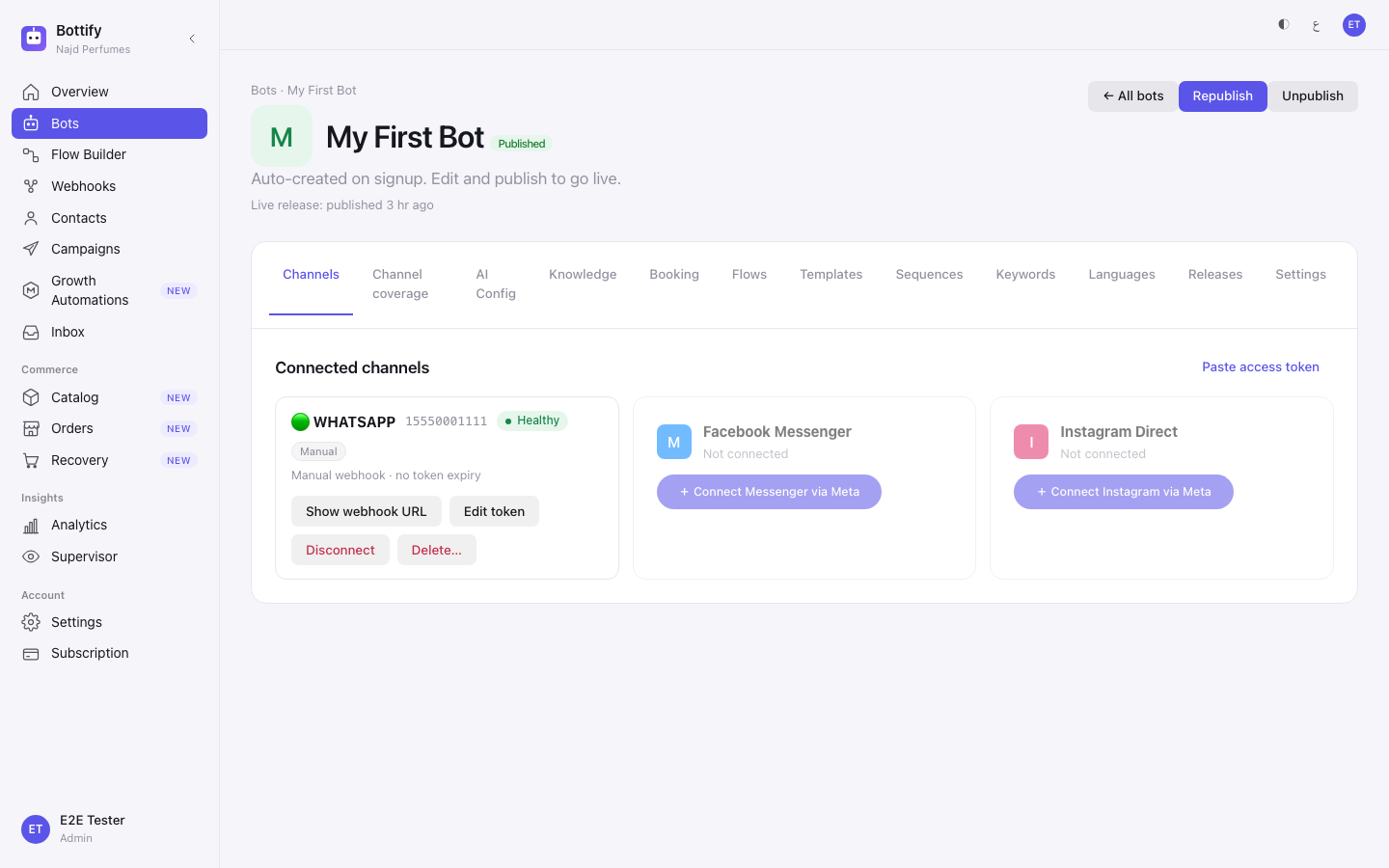
Close the panel and the channel now has a row of its own under Connected channels, showing the account ID, a chip reading Manual, and a health chip reading Healthy. On the Overview page, the workspace checklist ticks its channel step.
Now the important part, and please read it twice. That row says Healthy the instant it is created, before a single message has passed through Meta. It is telling you your credentials are saved, not your bot is answering. Those are two different facts:
- Connected means Bottify stored what you pasted.
- Working means Meta accepted your webhook at step 18 and a real message reached your bot.
So do not stop here. Message your own number from a different phone. If the bot replies, you are done. If nothing happens, go to the next section — and check back on the channel row in a few hours, because a broken webhook eventually turns the health chip to Webhook errors with the note "Inbound delivery problem — your bot can still send messages. Check that Meta still has webhooks subscribed to this number."
Why is my WhatsApp channel not connecting?
1. Your credentials saved, and nothing arrives
What you see: nothing at all in Bottify. A green success panel, a Healthy chip, and a bot that never answers. The error, if there is one, is sitting in your Meta dashboard.
Why: Bottify never checks what you paste. There is no test-connection button on this screen, for any channel. The form checks the shape of what you typed and nothing else — a token with a typo, an expired token, and a perfect token all save the same way. Everything is discovered later, by Meta, when a real message tries to move.
What to do: treat the save as step one of two. Send yourself a test message. If nothing comes back, check in this order — the verify token at step 18 (the most common single cause), then that the webhook fields at step 19 are actually subscribed, then that your access token has not expired. Watch out for one confusing message — and for what it is not. If you ever see "Server configuration issue" with "Something went wrong on our end (appsecret proof). Please contact support.", that copy is telling the truth: Bottify raises it inside its own code, before the call ever leaves for Meta, when the Meta app secret it went to fetch is missing or unreadable on our side. Nothing you paste can cause it, and re-pasting cannot clear it. The check that settles it is where the message appeared: this Connect channel form does not show that message at all — only the + Connect … via Meta window and Settings → Meta provider do. If you saw it there, it is ours: contact support and mention this page. And do not confuse it with the other appsecret-proof problem, the one described in What it does above — a token minted by your own Meta app failing the health check's signature never produces this message; it turns the channel's chip to Reconnect required.
2. The + Connect … via Meta button refuses
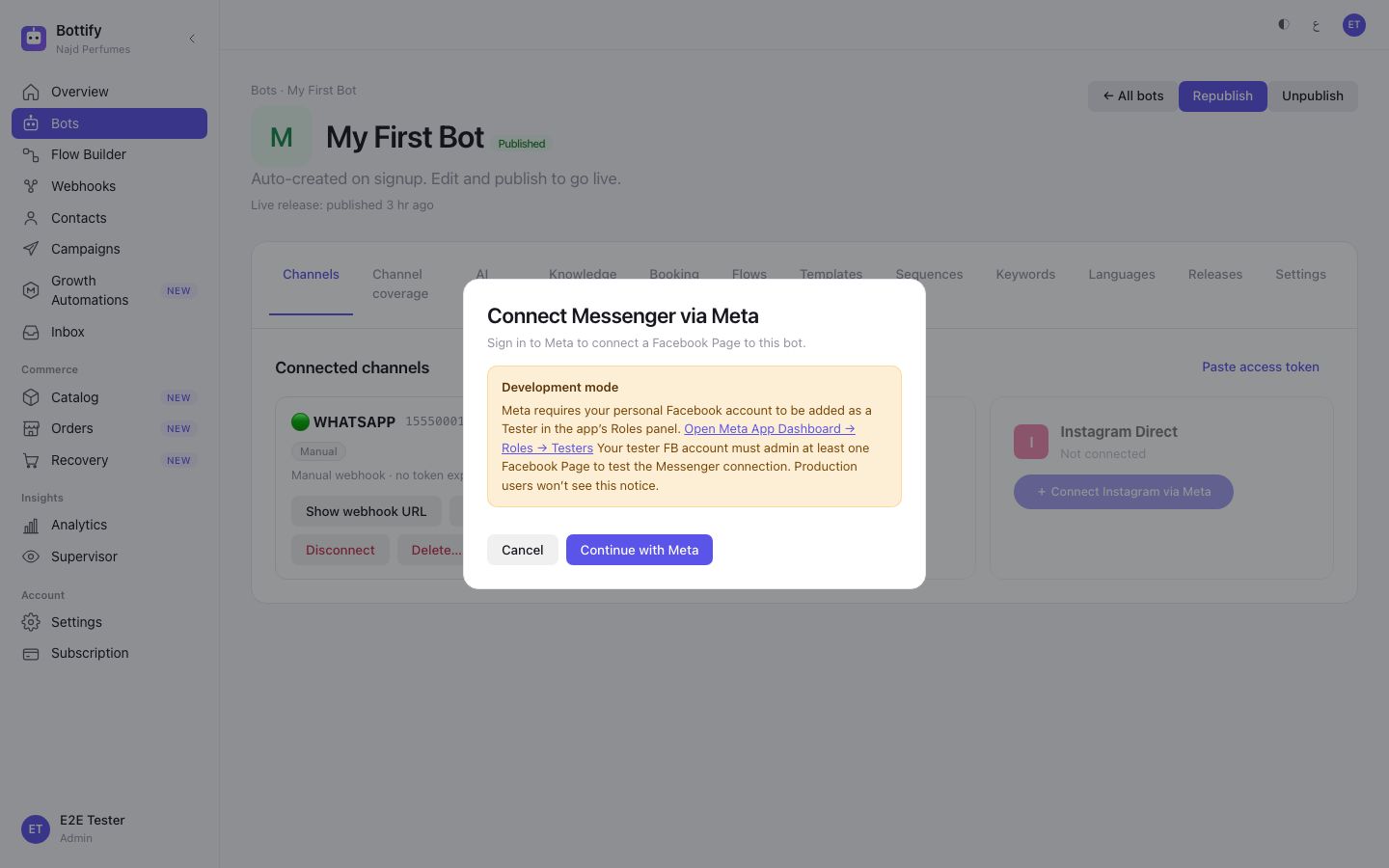
What you see: you click + Connect WhatsApp via Meta, and either a window opens carrying a notice headed Development mode that begins "Meta requires your personal Facebook account to be added as a Tester in the app's Roles panel", or you get a message reading "Meta sign-in not configured" — "Bottify is missing its Meta App credentials. Contact your administrator — this is a server-side configuration issue." You may also see "Meta provider not configured" — "Your Bottify workspace doesn't have an active Meta provider configuration yet. Contact your administrator."
Why: this is the path Meta has not approved. Bottify's own Meta app is still in development mode, and Meta will not let anyone sign in through a development-mode app unless they are listed as a tester on it. The notice is addressed to a developer because it was never meant to reach you.
What to do: stop using this button and use Paste access token instead — the whole of the Steps section above. Nothing you can do in your account opens this path. It opens for everyone at once, on the day Meta approves Bottify.
3. You open Meta provider settings and cannot use them
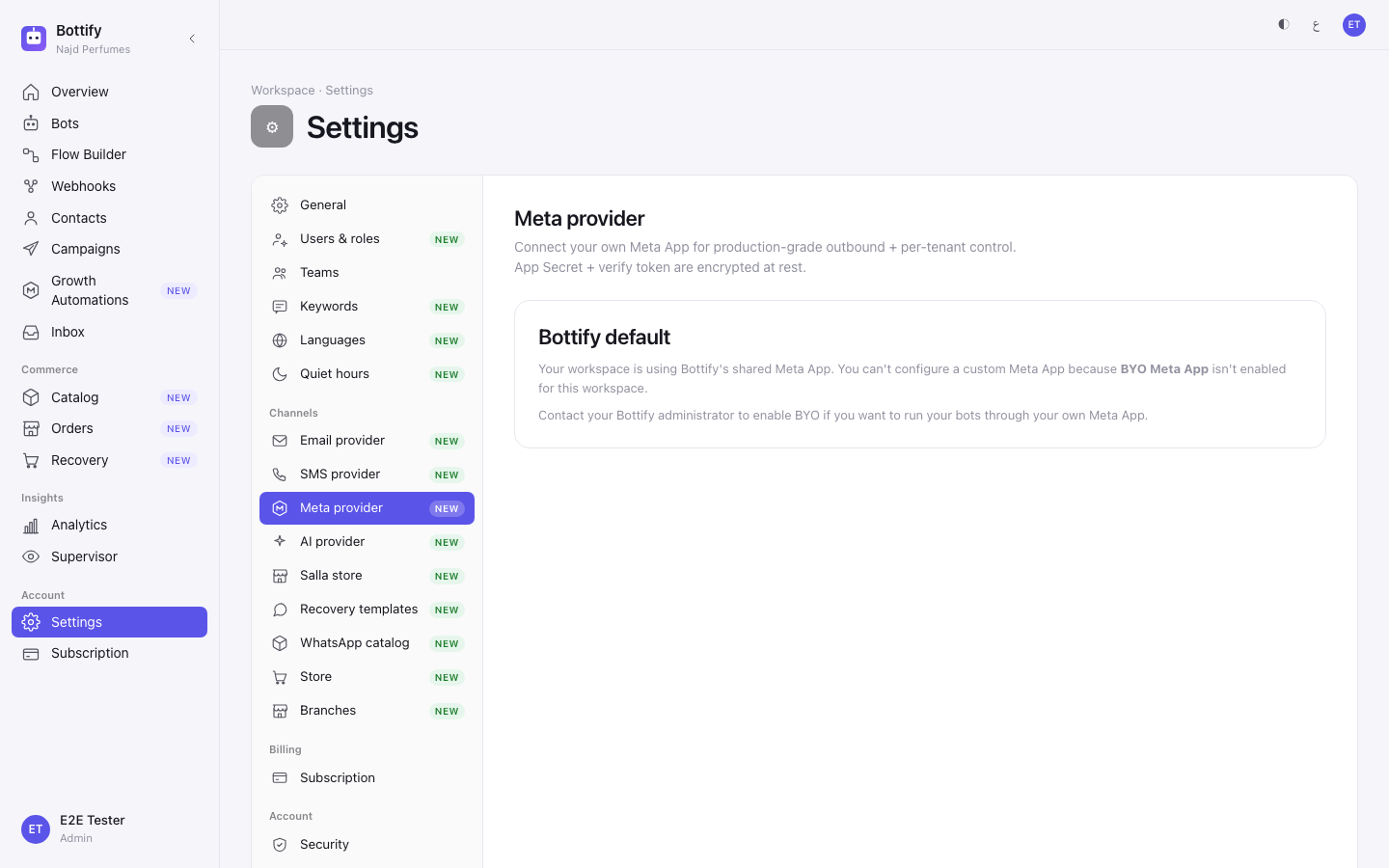
What you see: Settings → Meta provider shows a card headed Bottify default, reading "Your workspace is using Bottify's shared Meta App. You can't configure a custom Meta App because" BYO Meta App "isn't enabled for this workspace." — followed by "Contact your Bottify administrator to enable BYO if you want to run your bots through your own Meta App." If you reach it another way, you get a message titled "BYO Meta App not enabled" with "Your workspace doesn't have BYO Meta App enabled. Contact your administrator to enable it."
Why: running your whole workspace through your own Meta app is switched on for you by Bottify, one workspace at a time. It is off by default and there is no request button on the page.
What to do: nothing, if you are following this page — you do not need it. Connecting a channel by pasting a token works with the shared app and is unaffected. Ask Bottify support only if you specifically want your own Meta app across the whole workspace, and be ready to say why.
One more error worth recognising before it confuses you. If your token runs out, Bottify says "Channel token expired" — "This channel's access token expired. Use Reconnect via Meta to refresh it — your bot stays connected to the same number." That advice does not apply to you. Reconnect via Meta is the blocked path. On a channel you connected by pasting a token, use Edit token on the channel row instead, and paste a fresh token from Meta — as long as the row's health chip still reads Token expired. Once the chip has flipped to Reconnect required, Edit token is gone from the row, and the repair is the one described above: delete the channel row and connect it again.