Booking and appointments
Updated 2026-09-01
How to let your bot take appointments in chat — defining a bookable service, setting your weekly hours, creating the openings customers pick from, deciding who approves, and knowing where approving actually happens.
What does booking in Bottify do?
Booking services is where you tell a bot what can be booked, when, and how many people fit into one appointment. You define a service. You set the hours your shop is open. Bottify cuts those hours into openings — the product calls them slots — and the bot offers them inside a conversation. The customer picks one, answers your intake questions, and the appointment lands in your workspace.
Four decisions make up the whole job: what can be booked and for how long, when you are open and which days you are not, whether a booking is confirmed on the spot or waits for a person, and who finds out.
Naseem Care Centre is a beauty and skincare salon on شارع العليا in Riyadh. It already sells retail products through its Salla store, and the owner wants the WhatsApp bot to stop the endless "do you have anything at 6?" back-and-forth. She sets up two services. Express blow-dry is 30 minutes, two chairs are always free, so it confirms itself — a wasted slot costs her nothing. Skin consultation is 45 minutes with one therapist, so every request waits for a person to say yes. Layla, her branch manager, is the one who says yes. Two services, two different answers to the same question, on one screen.
What do you need before you can take bookings?
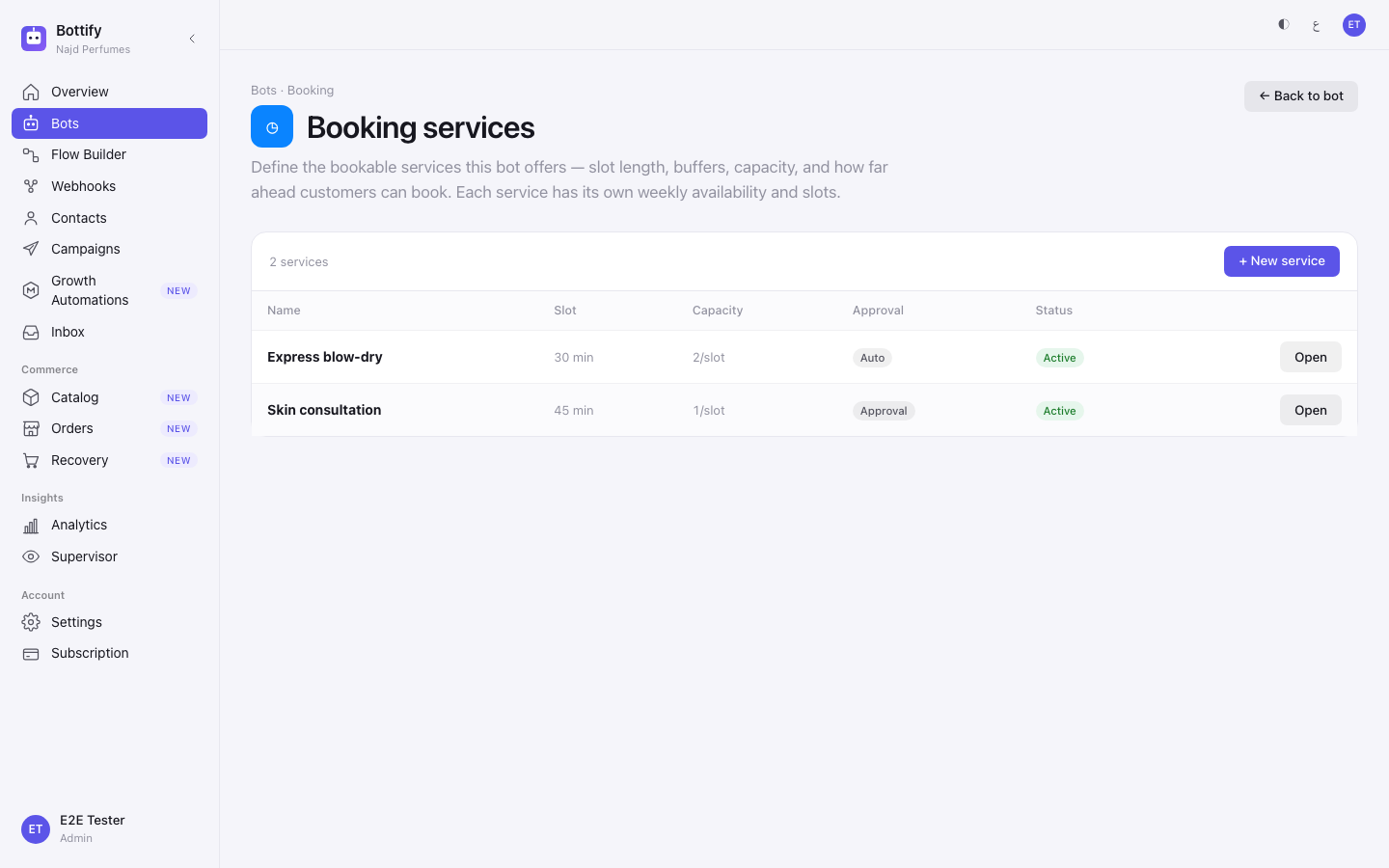
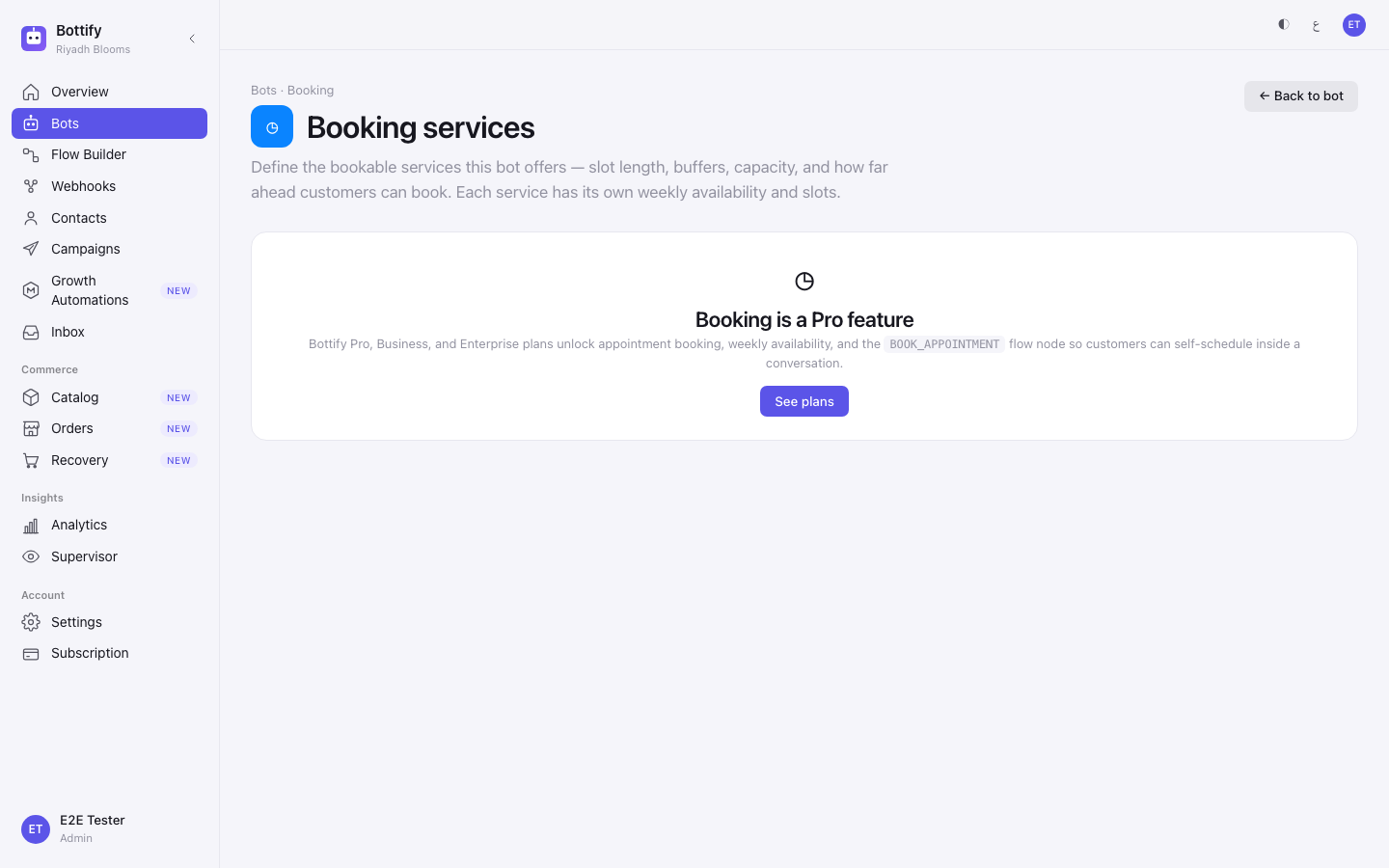
Booking needs Bottify Pro, Business or Enterprise. On a lower plan the Booking screen shows an upgrade card instead of your services, and the bot cannot take appointments even if a flow asks it to.
You must be an admin to set any of this up. Creating a service, setting hours, adding a closure, creating openings, editing questions, adding approvers and connecting a calendar are all admin-only. A supervisor can approve and decline bookings but cannot change a single setting. An agent can look at everything and change nothing. A viewer cannot open the Booking screen at all.
If you are not an admin, the screen does not tell you why. You get the same eight tabs with the buttons missing and the fields greyed out — no message explains it. That is the product being quiet, not your account being broken. Setting up booking is an admin job; ask an admin on your team.
Nothing needs to be connected to configure booking. Services, hours, openings, questions and approvers are all set up before any channel exists. Your Salla store has nothing to do with booking.
But a customer can only book inside a conversation, and that is where Meta bites. Meta has not yet approved Bottify, so WhatsApp, Instagram and Messenger cannot be connected through Bottify today. Your onboarding checklist says it in the product's own words: WhatsApp, Instagram and Messenger — awaiting platform approval. You can build every screen on this page perfectly and still have no channel for a customer to book on. There is a working route — bring your own Meta app and connect that way; it has its own page. Set up your services now if you like, but connect a channel before you tell a customer they can book.
Configuring a service does not make the bot offer appointments. You also need a published flow containing the BOOK_APPOINTMENT node. Nothing on any Booking screen repeats this after the upgrade card mentions it once. If your services are set up and the bot still says nothing about times, this is almost always why — go to the flow builder.
What are your options for bookings?
The three approval modes
This is the decision that changes the most.
| Mode | What changes |
|---|---|
| Auto-confirm booking | The customer picks a time and is confirmed on the spot. They get "✅ Booked! {{service_name}} on {{slot_datetime}}. Reference {{booking_ref}}." The row appears in Appointments as confirmed. You do nothing. Your approvers are still emailed, but there is nothing to decide. The service carries the Auto badge |
| Require approval in Bottify | The seat is held, not confirmed. The customer gets "Got it — your request for {{slot_datetime}} is pending confirmation." Every active approver is emailed a single-use link. When someone decides, the customer gets "✅ Your appointment on {{slot_datetime}} is confirmed!" or "Sorry, your request for {{slot_datetime}} wasn't approved." If nobody decides in time they get "Your request expired. Send a message to book again." The service carries the Approval badge |
| Require approval + Google Calendar sync | Everything the mode above does, plus the appointment is checked against and written to your connected Google Calendar. You cannot choose this mode until a Google Calendar is connected — it is not in the list before then |
A pending request is held for 24 hours by default. Nothing on any Booking screen says so, and nothing on any Booking screen changes it — the hold time lives on the BOOK_APPOINTMENT node in your flow, in its advanced configuration. If nobody decides inside the hold, the request expires and the seat is released.
Requiring approval with nobody to approve is the one setting that strands real customers. Read the third failure below before you turn it on.
Where approving actually happens
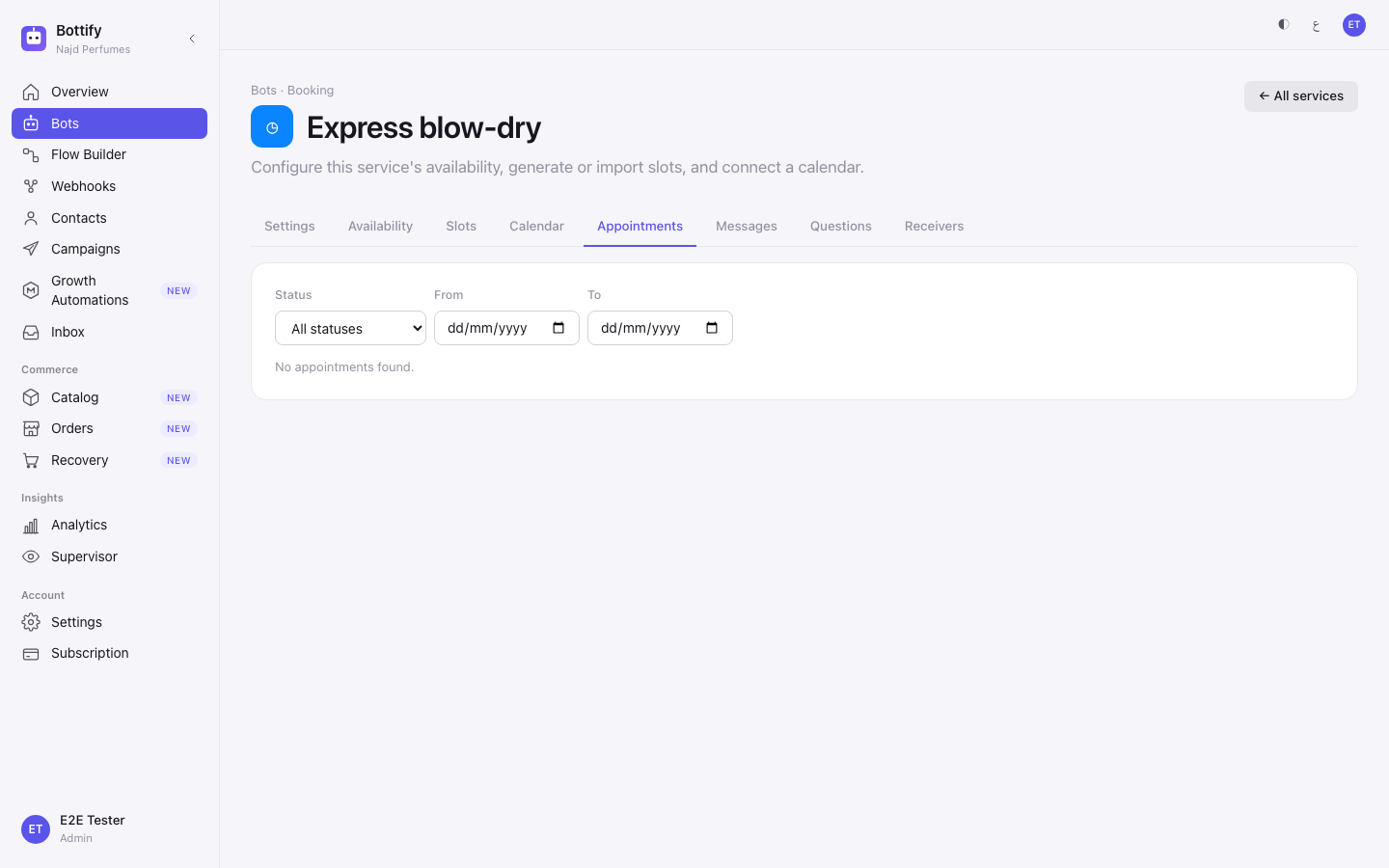
The product uses approval words everywhere — a tab, a badge, a mode literally named "Require approval in Bottify" — so it is worth saying plainly: there is no Approve button in the web console. The Appointments tab is a read-only table. It shows you what happened; it is not where you decide.
There are exactly two ways to approve a booking:
- The emailed link. Every active approver gets an email with a single-use link to a plain approval page carrying three buttons: Approve, Decline and Tentative. The page states the rule itself — "The seat is held until you decide. First decision wins." The person clicking does not need a Bottify account and does not sign in.
- The Bottify mobile app. An admin or a supervisor approves from the Bookings tab on their phone.
Because both routes are live at once, two people deciding the same booking is normal, not an edge case. The second one is told the appointment is already decided, and the first decision stands.
The approval page opens in the language your customer was chatting in, not yours. An Arabic-speaking manager approving a booking made by an English-speaking customer gets an English page. Nothing on any screen says so; it is a design, not a fault.
Approvers — the tab labelled Receivers
On the tab labelled Receivers, you add the people who approve bookings. Each one is an email address and a label, nothing more.
An approver is not a Bottify user. It is a bare email address. Anyone holding the emailed link can approve without signing in — no account, no password, no role. Add a personal inbox and you have given that person the power to confirm your appointments. Activate and Deactivate switch an address on and off without deleting it.
Everything on the Settings tab
| Setting | What changes if you change it |
|---|---|
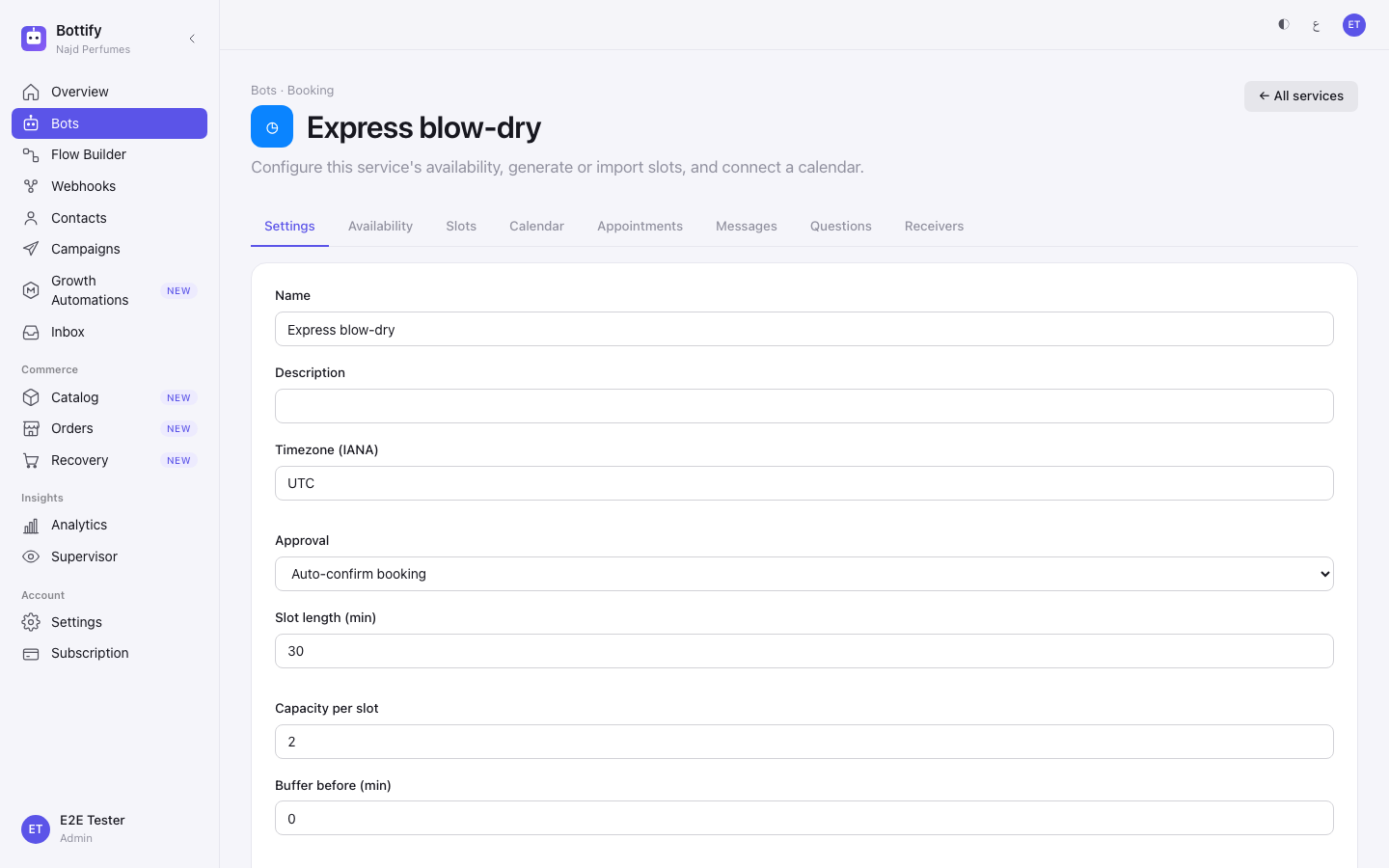
| Timezone (IANA) | The zone every opening is created and shown in. A new service starts on UTC — read the callout below |
| Slot length (min) | How long each opening is. 1 to 1440 minutes |
| Capacity per slot | How many customers can hold the same opening. 1 to 1000. Changing it affects only openings created after the change — openings that already exist keep the capacity they were created with |
| Buffer before (min) / Buffer after (min) | Dead time reserved either side of each opening, so appointments do not run into each other. 0 to 1440 |
| Lookahead (days) | How far ahead openings are created — today plus this many days. 1 to 365 |
| Cancel cutoff (min before start) | How close to the start a customer may still cancel. 0 to 525600 minutes |
| Auto-generate slots from availability | On: openings are topped up once a day on their own. Off: nothing is created automatically — and the Generate slots now button stops working too. The button and this box look independent and are not |
| Allow multiple active appointments per customer | On: one customer may hold several bookings for this service. Off: a second attempt is told "You already have an active appointment for this service." This is counted per service, so it cannot stop one customer holding one blow-dry and one consultation |
| Let customers view their own appointments | On: unlocks a "My appointments" conversation where each customer sees their own booking and the answers they gave. Off: they cannot look their booking up |
| Let customers reschedule their own appointments | On: a customer can move their own booking, subject to the cancel cutoff |
| Let customers cancel their own appointments | On: a customer can cancel their own booking, subject to the cancel cutoff |
| Service active (bookable) | On: the service accepts bookings and gets new openings. Off: it stops being bookable and stops getting openings. Bookings and openings already made are kept |
Your new service starts on UTC, and nothing warns you. The create form has no timezone field. The field only exists one screen later, on Settings, as a free-text box with no picker. For a Gulf shop
UTCis three hours out: a 10:00 window creates openings that show and fire at 13:00 local. Set the timezone the moment the service exists, before you touch anything else. The exact values areAsia/Riyadh,Asia/Dubai,Asia/Kuwait,Asia/Qatar,Asia/BahrainandAsia/Muscat.
Where the starting values come from. The create form promises that slot length, buffers and capacity come from your workspace settings. There is no screen where you can see or change those. In practice a new service starts at 30 minutes, capacity 1, no buffers, 30 days of lookahead, UTC, auto-confirm, auto-generate on, and active. Change them on Settings after creating the service.
A service can be switched off but not deleted here. There is no delete control in the list. Unticking Service active (bookable) is the way to retire a service, and everything already booked survives it.
Weekly hours and closures
Weekly availability is the set of windows the bot offers openings within. Saving replaces the whole week — a day with no windows is closed. Date exceptions block a whole day: a public holiday, a day the shop shuts. The form only makes whole-day closures; there is no way to shorten a single day.
Intake questions
Questions are asked between picking a time and confirming, in the order you set. Name, Phone, Email and Location are one-click quick-adds and arrive as required; phone, email and location are validated for you. Anything else you write yourself, with a Key (unique slug) you cannot change afterwards — to change a key, remove the question and add it again.
Two honest limits. The field is labelled Prompt (English) and it means it: the web console can only store your question in English, whatever language you or your customers use. And the answers never appear in the web console. They are stored, and the Appointments table has five columns, none of which is answers. Only the customer sees their own replies, through "My appointments", and only if you turned that on. If you need to read the answers, ask your customer in the conversation.
Marking a question as sensitive — so the bot collects it over a secure link instead of in the chat — is a phone-app job today. It is not on any web screen.
The calendar, and the messages
Calendar connections are optional. With none, the honest empty state says so: No calendar connected. Bookings still work — they just live in Bottify only. Connecting sends you to Google to authorise, then brings you back. One surprise worth knowing: a calendar you connect from one service's Calendar tab is available to every service on that bot, not just this one.
Messages lets you rewrite what the bot says, per language, across ten languages. Editing a box saves an override; clearing it falls back to the default. Reset to default undoes one. You can change the reminder text — you cannot change the reminder timing: reminders go out 24 hours and 1 hour before the appointment, fixed, with no screen to change them. And some rows in the list still show their internal name — booking.guided_pick_time_header and the like — instead of a readable label. Those rows are editable; they are only unlabelled.
Booking reminders are not part of the dry-run posture that cart recovery runs in. They send for real — as long as there is a channel for them to send on, which brings you back to Meta.
How do you take appointments in chat?
Set up Express blow-dry at Naseem Care Centre, as an admin.
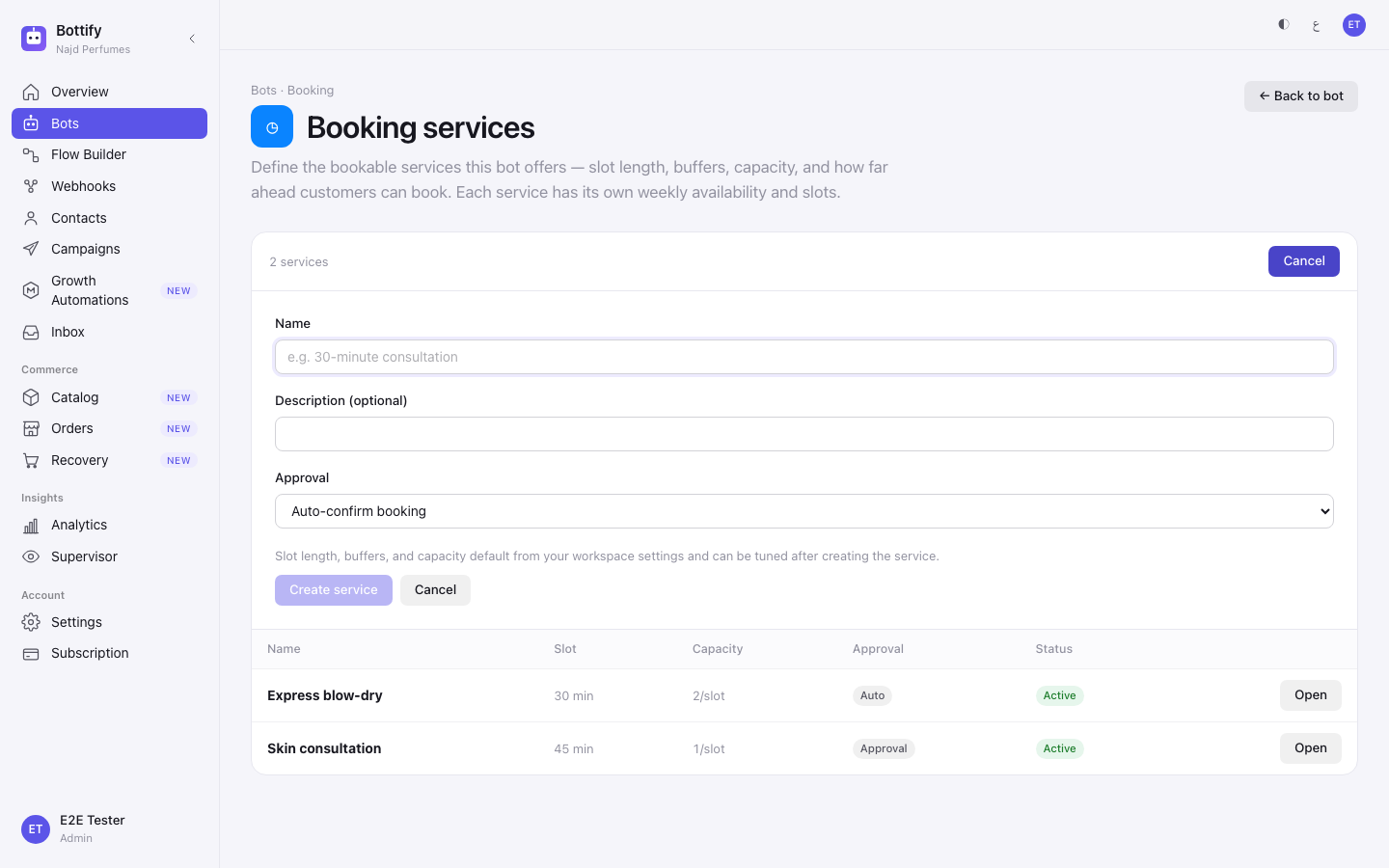
- Open your bot and click the Booking tab.
- Click + New service.
- Type
Express blow-dryinto Name. - Leave Approval on Auto-confirm booking.
- Click Create service.
- Click the new service's name in the table to open it.
- On the Settings tab, type
Asia/Riyadhinto Timezone (IANA). Do this before anything else — the field saysUTC. - Type
30into Slot length (min). - Type
2into Capacity per slot. - Check that Auto-generate slots from availability is ticked.
- Click Save settings.
- Open the Availability tab.
- Click + Add window on your first working day.
- Type
10:00in the first box and20:00in the box after to. - Repeat steps 13 and 14 for every day you are open.
- Click Save availability.
- Open the Slots tab.
- Click Generate slots now.
- Open the Questions tab.
- Click + Name under Quick-add common questions.
- Click + Phone.
For the consultation, add the approver before you change the mode: open Receivers, click + Add receiver, type Layla's address into Email address, type Manager into Label (optional), click Add receiver — and only then go back to Settings and choose Require approval in Bottify.
Then publish a flow with the BOOK_APPOINTMENT node in it, or none of this reaches a customer.
How do you know a booking was made?
After you create the service, a message reads Service created and the service appears in the table with the badges Auto and Active, its slot length and its capacity in their own columns.
After you save the settings, a message reads Service saved.
After you save your hours, a message reads Availability saved.
After you create the openings, a message counts them — Generated 260 slots. The Slots table fills with the next 20 openings, and the panel heading now names your zone: Next open slots — the upcoming bookable openings (times in Asia/Riyadh). Seeing Asia/Riyadh in that heading is your proof the timezone took. The Status and Source columns show short codes rather than words — OPEN is an opening nobody has taken, SCHEDULE means Bottify created it from your hours, IMPORT means it came from a file you uploaded.
After each quick-add, a message reads Question added and the button changes to a tick that cannot be clicked again.
After you add an approver, a message reads Receiver added and the row appears marked Active.
The real proof is a customer booking one. That needs a connected channel and a published flow with the BOOK_APPOINTMENT node — until both exist, a full Slots table means the shop is ready, not that the bot is taking appointments.
Why can't my customer book a time?
The Booking screen shows an upgrade card instead of your services
What you see: a card headed Booking is a Pro feature, reading "Bottify Pro, Business, and Enterprise plans unlock appointment booking, weekly availability, and the BOOK_APPOINTMENT flow node so customers can self-schedule inside a conversation.", with one button, See plans.
Why: booking is off on your plan. It is off by default, and only Pro, Business and Enterprise turn it on.
What to do: click See plans and upgrade. Two things to know before you do. The card only guards the list — if you have a bookmark straight to a service, that page opens its eight tabs and then refuses every action with a red message reading "Booking is not available on your plan". Nothing is broken; it is the same gate arriving late. And See plans goes to your billing screen, which only an admin can open. A supervisor or an agent who hits this card cannot act on it — send them to you.
Generate slots now says it worked and nothing appears
What you see: the message Generated 0 slots. It looks like every other success message. The Slots table still reads No open slots. — and for an admin, the hint after it, "Generate from availability above or import an xlsx below."
Why: three different causes produce this same cheerful message, in the order you are likely to hit them. You never saved your weekly hours — this is the common one, and it happens when you go straight to Slots after creating the service. Or Auto-generate slots from availability is unticked on Settings: that box gates the button as well as the daily top-up, which no screen tells you. Or Service active (bookable) is unticked, so nothing is created for it at all.
What to do: go to Availability, check that at least one day has a window, and click Save availability. Then go to Settings and check that both Auto-generate slots from availability and Service active (bookable) are ticked, and click Save settings. Then come back and click Generate slots now again. Running it more than once is safe — it never creates the same opening twice.
You chose an approval mode and there is nobody to approve
What you see: on Settings, a warning reading Approval mode requires at least one active receiver email. Add a receiver before saving. — and Save settings greyed out until you fix it.
Why: an approval mode holds every booking until a person decides, and you have not told Bottify which person. The warning is the product stopping you before it becomes a customer's problem.
What to do: open Receivers, click + Add receiver, add an address, and come back. The mode saves once one active approver exists.
The worse version of this happens later, and there is no warning at all. If the service is already saved in an approval mode and you then deactivate or remove your last approver, nothing stops you. Bookings start being refused with the message "This service requires approval but has no active receiver to approve bookings." — and a customer trying to move an existing booking is told "Rescheduling is not available right now". The service is holding every booking for approval and there is nobody to approve them, so requests wait until they expire. Before you switch an approver off, add the replacement first.