Campaigns and sequences
Updated 2026-11-04
How to send one announcement to many customers at once, how to set up a timed follow-up that runs on its own, and which of the two you actually need.
A restaurant or a café sends from Offers («العروض»), not from here. Its ready offers, «Write your offer», and their results are on the Offers page; opening Campaigns takes it there. The messages that go out by themselves («We miss you») are on Automatic messages. An offer's own sends never appear in the Campaigns list: their numbers are on the offer.
What does a Bottify campaign do?
Two features live behind one plan feature, and merchants mix them up constantly. The product draws the line in one sentence at the top of the Campaigns page: "Send broadcasts to segments of your audience. Drip sequences live on the bot details page."
Said plainly: a campaign is an announcement. A sequence is a follow-up.
| Campaign | Sequence | |
|---|---|---|
| What it is | One send, to many people, at one moment | A timed series of messages to one person, starting when that person is enrolled |
| Where it lives | Sidebar → Campaigns — one list for your whole workspace | Inside a bot → the Sequences tab — one list per bot |
| When it goes | Within about a minute of your confirm, or at the time you pick — if it can still send then. A draft never goes on its own | The first step after its wait; each later step after its own wait |
| Runs again? | No. A campaign runs once: it ends Sent, or Failed with a line saying why | Yes. An active sequence keeps enrolling new people for months |
| Started by | You | A flow, using the Subscribe to Sequence step |
Nuha runs متجر نُهى للعبايات — Nuha Abayas, a small abaya shop in Riyadh selling on Salla. Her bot answers sizing and delivery questions on WhatsApp. She has two different jobs this week.
The first: "The Ramadan collection just landed. Tell my repeat buyers today." That is a campaign. Nuha tags her repeat buyers vip, picks a template and fills its blanks, picks a time, and it goes out once.
The second: "Anyone who asks about sizing should hear from me again 2 days later, and again after a week." That is a sequence. Nuha builds three flows, chains them with waits, turns the sequence on, and drops a Subscribe to Sequence step into her sizing flow. From then on, every customer who asks about sizing starts that follow-up on her own clock, without Nuha touching anything.
One thing to be clear about before you read further: campaigns and sequences really send. Cart recovery, elsewhere in Bottify, is running in a rehearsal — it plans reminders and sends nothing. That is not true here. Once a channel is connected, a campaign you schedule goes out to real people at the time you set, if it can still send then.
What do you need before you can send a campaign?
| # | What must be true |
|---|---|
| 1 | Your plan includes campaigns. Campaigns and drip sequences are the same plan feature. If it doesn't, neither one works: the Campaigns page does not open — it reads "This feature isn't available on your plan" instead — and the dashboard has no Launch campaign button. During the free trial the page reads "Campaigns and sequences aren't available during the free trial.", with the way to upgrade. A campaign scheduled before your plan lost campaigns does not go: at its time it ends Failed with "Campaigns aren't part of your plan." |
| 2 | You are an admin. The campaign pages are for admins only — every endpoint behind them is admin-only on the server. The dashboard's activity is not: it shows every role a sent campaign's name and how many it reached. A supervisor or an agent does not see Campaigns in the sidebar, and one who follows a link there now reads a card saying "This page is for workspace admins." Sequences are looser: supervisors and agents can read a bot's sequences and see who is enrolled, but only an admin can create, edit, turn on, pause or archive one. |
| 3 | A bot exists. Every campaign is attached to one bot. |
| 4 | For a sequence, a published flow on that bot; for a campaign, an approved WhatsApp template. The sequence step picker only offers flows that are published, and the server checks again when you save. |
| 5 | A messaging channel is connected to that bot. This is the hard part today. See below. |
About the channel, honestly. Meta has not yet approved Bottify. WhatsApp, Instagram and Messenger cannot be connected through Bottify's own path — the onboarding journey's channel step says one-click connection waits for Meta to approve Bottify, and its Connect a channel button leads to the manual connection. There is a way through, and it is the only one: bring your own Meta app and connect the number yourself. That is documented on its own page. Until you have done it, a campaign has nothing to send through: the template it sends needs a connected WhatsApp number.
About opt-outs, also honestly — and this one is good news. Bottify enforces consent for you. A customer who replied stop (or إيقاف) is never in a campaign's audience, whatever tags you type, and cannot be enrolled in a sequence. If someone opts out halfway through a sequence, the rest of it stops at once. You do not have to maintain a suppression list. The Keywords screen in settings is where the stop words live, and it says why: "When a contact sends one of these, they're unsubscribed and the configured reply is sent. Required for CAN-SPAM / GDPR compliance."
The match is on the whole message, exactly. stop unsubscribes. stop please does not.
What are your options — campaign or sequence?
On a campaign:
| Option | What changes if you use it | What changes if you don't |
|---|---|---|
| What it sends | A campaign sends one approved WhatsApp template to everyone in its audience: the same message, sent and forgotten. No branching, no replies handled, and it works outside WhatsApp's 24-hour window. A template with a picture, a video, a document or a location in its header, or a blank in its header text, can't be sent as a campaign: it isn't offered, and a draft that has one is refused with "This draft can't be sent with its template. Delete it and create a new one." | Sending through a bot flow is no longer offered: the dialog has no such choice, and Review stays off until a template is picked. A flow campaign made before still shows in the list. If it was scheduled, it ends Failed with "Sending through a bot flow isn't available. Choose a template." instead of sending; a draft one stays a draft. |
| When — Send now or Pick a time | Send now goes out within about a minute of your confirm, by Bottify's clock — a phone whose clock is a few minutes off still sends on time. Pick a time opens a date and time box, in your device's time zone, and the campaign goes out at that time, give or take a minute. A time in the past is refused under the box: "Pick a time in the future". | Send now is the default. |
| Blanks (Blank 1, Blank 2…) | Fills each blank in your template — the screen says "Choose what fills each blank in the template." Values are fixed: the same text for every recipient. A link button that ends in a blank is under Button links: in From the customer's details pick None, First name, Last name, Phone number or Email, and write the text. With None, the box reads Text in the link and every customer gets that text. With a detail picked, it reads If it's missing: each customer gets their own detail, and one who doesn't have it gets the text. | Review stays off until every blank has something in it — a link button's text too, which is always required — and the first empty one says so: "Fill every blank." under a body blank, "Write the link text for each button." under a link's. |
| More options → Only customers with these tags | Only contacts carrying every tag you list get the message. Typing vip, newsletter reaches people who have both, not either. | Leave it empty and the campaign goes to every subscribed customer on WhatsApp. The confirm step shows that number before anything is sent. Up to 20 tags, each up to 100 characters: more tags are refused with "Use up to 20 tags.", a longer tag with "A tag can be up to 100 characters." |
On a sequence step:
| Option | What changes if you use it | What changes if you don't |
|---|---|---|
| Wait and Unit (minutes / hours / days) | The step waits that long before firing. On the first step the wait is counted from the moment the person is enrolled; on every later step, from when the previous step fired. Set it to 0 and the summary reads Immediate (no wait). | — |
| Restrict delivery to a time-of-day window | The step only fires between the hours you set, on the days you tick. A message that comes due at 3 a.m. waits until the window opens. | The screen tells you what happens: "When off, the step fires as soon as the wait elapses (legacy behavior)." Middle of the night included. |
| Resolve window in → Contact's timezone | 9 a.m. means 9 a.m. where each customer is. Contacts with no timezone on file fall back to UTC. | Pick Fixed timezone for everyone and 9 a.m. means 9 a.m. in the one zone you chose — Asia/Riyadh, Asia/Dubai, and so on. |
One warning you may meet on a step, and should take seriously: "This window may fall outside the WhatsApp 24-hour customer-service window for some contacts. To deliver outside that window, add a TEMPLATE_MESSAGE node to the linked flow." Bottify does not block that send. It is a hint, not a guard — you can ignore it and publish. Meta will reject the message instead, and it will land in your Failed count.
Things you cannot change: there is no edit screen for a campaign once it exists, and there is no way to put a person into a sequence by hand — enrolment happens only through a flow.
How do you send a WhatsApp campaign?
Send a campaign — you must be an admin
- In the sidebar, open Campaigns.
- Press + New campaign.
- In Name, type a name for yourself — Nuha types
Ramadan abaya drop. - If there is more than one WhatsApp number to choose from, across your bots, pick the one to send from in Send from. With one number there is no such field, however many bots you have.
- In Template, pick an approved template. Each one shows its name and its language in words — Arabic, English. The list is every approved template of that number that a campaign can send, however many: Bottify's own messages are never offered — its system messages (an order update, a delivery invite), an offer's message and a cart reminder — and a campaign can't send one ("This template can't be sent as a campaign. Pick another."). Nor is a template a campaign can't fill: one with a picture, a video, a document or a location in its header, or a blank in its header text; one with a named blank in its text (such as
{{first_name}}); one with a button other than a quick reply, a link or a call (a copy-code button, for one); a carousel or a limited-time offer; or an authentication code. If none can be sent from this number yet, the field reads "No template ready to send from this number." with a Create a template link to that bot's template page. - If the template has blanks, fill each one — Blank 1, Blank 2.
- In When, keep Send now, or press Pick a time and choose a date and time.
- To reach only some customers, open More options and type their tags in Only customers with these tags — Nuha types
vip. - Press Review. The step shows the campaign's name, its template, its time, and how many customers it will reach, and asks "Send to 120 customers?". Press Send now — or Set the time for a picked time. If nobody matches, it says "No customers match this campaign yet, so there is nothing to send." and the button stays off.
Build a sequence — you must be an admin
Before you start: this whole area of the product is in English, on Arabic screens too. Nothing in the sequence editor is translated.
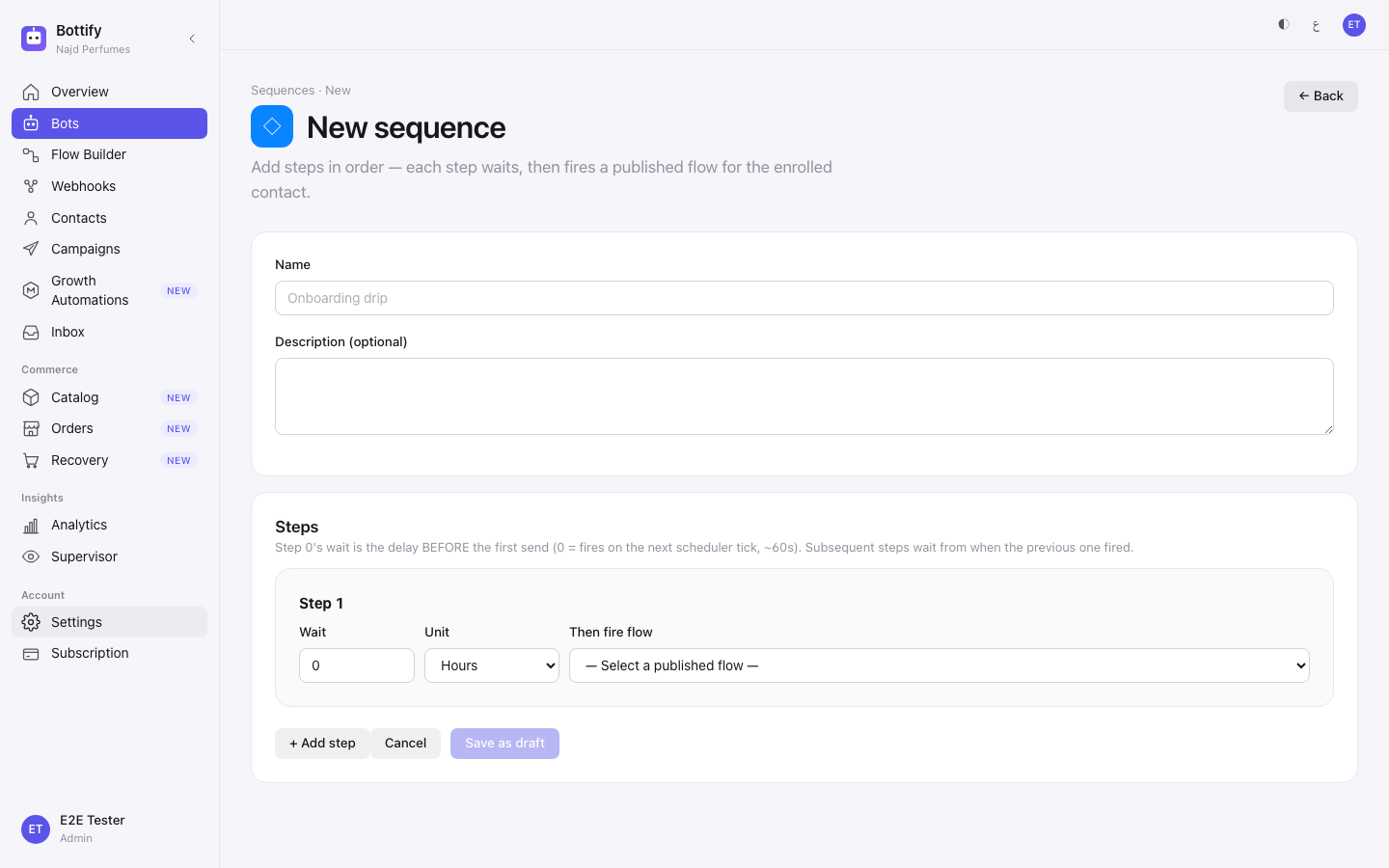
- In the sidebar, open Bots and open the bot you want.
- Open the Sequences tab.
- Press + New sequence.
- In Name, type a name — Nuha types
Sizing follow-up. - On the first step, set Wait to
0. - In Then fire flow, pick your first published flow.
- Press + Add step.
- On the second step, set Wait to
2and Unit to Days. - In Then fire flow on that step, pick your second published flow.
- Press Save as draft.
- On the page that opens, press Activate.
- Open the Flow Builder on the flow that should enrol people, and add a Subscribe to Sequence step.
- In that step, pick your sequence from — Select an ACTIVE sequence —.
- Publish that flow.
The Subscribe to Sequence step has three exits. Subscribed is a new enrolment. Already enrolled is a customer who is already partway through it — they are left where they are, not restarted. The third exit is for errors.
How do you know your campaign was sent?
After you confirm — a toast reading "Sending starts within a minute." (or "Scheduled for" and the time), the dialog closes, and a new row appears in the table with the badge Scheduled. You do not need to reload: while a campaign is due or sending, the list refreshes itself every few seconds.
When the time arrives — within about a minute the badge flips to Sending and a strip appears at the top of the page with the badge "⚡ Currently sending". Under it: the mode (WhatsApp template broadcast), a progress bar counting the send off against its recipients — "180 of 500 · 36% complete", and four live counters — Recipients, Sent, Failed, Skipped. The strip refreshes itself every few seconds.
When it finishes — the badge reads Sent. Click the row to open the results: Recipients, Sent, Failed (shown in red when it is above zero) and Skipped, then a Timing section with Scheduled, Started and Completed. Whether a message was delivered or read is not tracked for campaigns yet, so no screen shows it.
Read Sent carefully, because the word does three jobs on this screen. As a badge it means the run finished. As a counter it means how many messages left Bottify. As a tab it is a group of campaigns, not one. A campaign that reached nobody never reads Sent: when its template was deleted or is no longer approved, or its number is gone, it ends Failed with a short red line next to its name saying why — "Template no longer exists", "Template is not approved", "Pinned WhatsApp channel is no longer active or available", "No active WhatsApp channel on this bot", "This template belongs to another number." And a send that went through but reached nobody — every message refused, every customer skipped, or nobody left to send to by its time — ends Failed with "Nobody received this send", its counts kept. One message out is enough for Sent. For now one send is the exception: a send linked to an offer can read Sent having reached nobody.
Two absences that are not faults. Broadcast messages do not appear in the Inbox and do not show up on the customer's conversation history — Bottify records them on the campaign, not as conversations. And if Recipients read 500 but Sent reads 430, some of the missing 70 may have been skipped rather than failed: Meta blocks marketing templates in some cases, and Bottify counts those separately — the results show them as Skipped, beside Failed.
For a sequence — after Save as draft, a toast reading "Sequence created" and you land on the sequence's own page. After Activate, a toast reading "Sequence updated" and the badge beside the name changes to Active. From then on the Stats tab is where you check the work: Total enrolled, Active, Completed, Cancelled, Errored, a per-step funnel showing Contacts here right now, and a list of recent enrolments with each person's next run time.
Why did my campaign not send?
"No active WhatsApp number"
What you see — in the New campaign dialog, a yellow note: "No active WhatsApp number", with the line "Connect a number on the bot's page first." and a Go to bots link to your bots.
Why — this is where nearly every merchant is today, and it is not your mistake. Meta has not yet approved Bottify's own app, so there is no one-click way to connect WhatsApp. The dialog is telling you the truth in the only words it has.
What to do — there is one route, and it works: bring your own Meta app and connect your number through the manual path. That has its own page in this guide. Go to bots takes you to where that starts; it is not a single button — it is a real setup job. Until it is done, campaigns are out of reach.
A campaign reads Draft
What you see — a row with the badge Draft, and a toast that said "Couldn't send" — "Saved as a draft, not sent." — when you confirmed. The row is in front of you: the list stays on All, or moves to Drafts from any other tab.
Why — the campaign was saved, and then its send was refused. A draft never sends on its own.
What to do — press Send on its row: the same When and the same confirm step. Don't make the campaign again from + New campaign while the draft can still go: it is already there. If it is refused again, the step says why and Send stays off. "This draft can't be sent with its template. Delete it and create a new one." (its template is no longer approved, has a picture or a blank in its header, can't be filled by a campaign, is one of Bottify's own, or belongs to another number), "This draft's number can't send any more. Delete it and create a new one." (its number is switched off) and "This draft is incomplete. Delete it and create a new one." (an empty blank, or a value its template has no place for): a draft can't be edited, so press Delete, confirm, and make the campaign again. A draft whose template was deleted since, or whose number was removed (its templates go with it), offers Delete only. A send linked to an offer stays: "A send linked to an offer can't be deleted."
Your campaign ended Failed
What you see — the badge reads Failed, and under the campaign's name a red line says "Sending stopped before it finished" or "Sending stopped because of an error". The counts show what went out before it stopped.
Why — a send that stops partway ends Failed instead of starting over, so no customer it reached gets the message twice. "Sending stopped before it finished" means the send was cut off: a very long send, or a restart while it ran. "Sending stopped because of an error" means something went wrong while it was sending.
What to do — read the counts. To reach the customers it missed, create a new campaign. Anyone the first one reached gets the message again if they are in the new audience. The same campaign cannot be sent a second time, on purpose.
You can't stop a campaign that has started
What you see — the Cancel button on the campaign's row is gone. It is there on rows reading Scheduled, and nowhere else. If a request does reach the server, the toast says "Only a draft or a scheduled campaign can be cancelled." Deleting is refused the same way — "A campaign that is sending can't be deleted." — and a sent campaign stays too, as does a failed one that reached anyone: "A sent campaign can't be deleted."
Why — once sending begins, messages are already at Meta. There is no recall.
What to do — check the number of recipients on the confirm step, before you send, not after. While a campaign still reads Scheduled, press Cancel on its row: it asks first — "Cancel this campaign?", "This campaign won't go out. This can't be undone." — and Cancel campaign calls it off, with the toast "Campaign cancelled" and a Cancelled badge; Back leaves it scheduled. That window closes the moment sending starts, and not one second later. A cancelled campaign, and a failed one that reached nobody, offer Delete: it asks "Delete this campaign?" and then reads "Campaign deleted". Be careful with which Cancel you mean: the button on the row calls off a campaign for good, while Cancel inside the New campaign dialog only closes the dialog.
The template is refused when you confirm
What you see — after Send now (or Set the time), the dialog goes back to the form with a red line, the toast "Couldn't create the campaign" says the same, and Template is empty again: "This template is no longer approved. Pick another.", "This template can't be sent as a campaign. Pick another.", "A template with an image or a blank in its header can't be sent as a campaign. Pick another.", "This template belongs to another number." or "This template is no longer available. Pick another."
Why — the template changed while the form was open: Meta paused it or stopped approving it, or it is one a campaign can't send. Nothing was saved.
What to do — the template list has been read again, so the one refused is no longer in it. Pick another and press Review again.
One more. If confirming produces a toast titled "Couldn't create the campaign" whose body reads "Campaigns aren't part of your plan." (your plan changed while the page was open), that is the plan gate, not a fault. Upgrade the plan, or ask whoever manages your billing — nothing on the campaigns screen can fix it.